This guide provides all the essential information on using Easy Order Manager+ order metafields.
Order metafields added via Easy Order Manager+ do not reflect those set in your Shopify Store Admin. If you need to display Shopify-native metafields on your documents, please contact our support team by submitting a ticket through the Help Center in the app.
Please follow the steps below:
Step 1: Log in to your Shopify account.
Step 2: Navigate to the Apps section of your Shopify store and select Easy Order Manager+. You will be automatically redirected to the app dashboard.

Step 3: Click on the Orders tab.
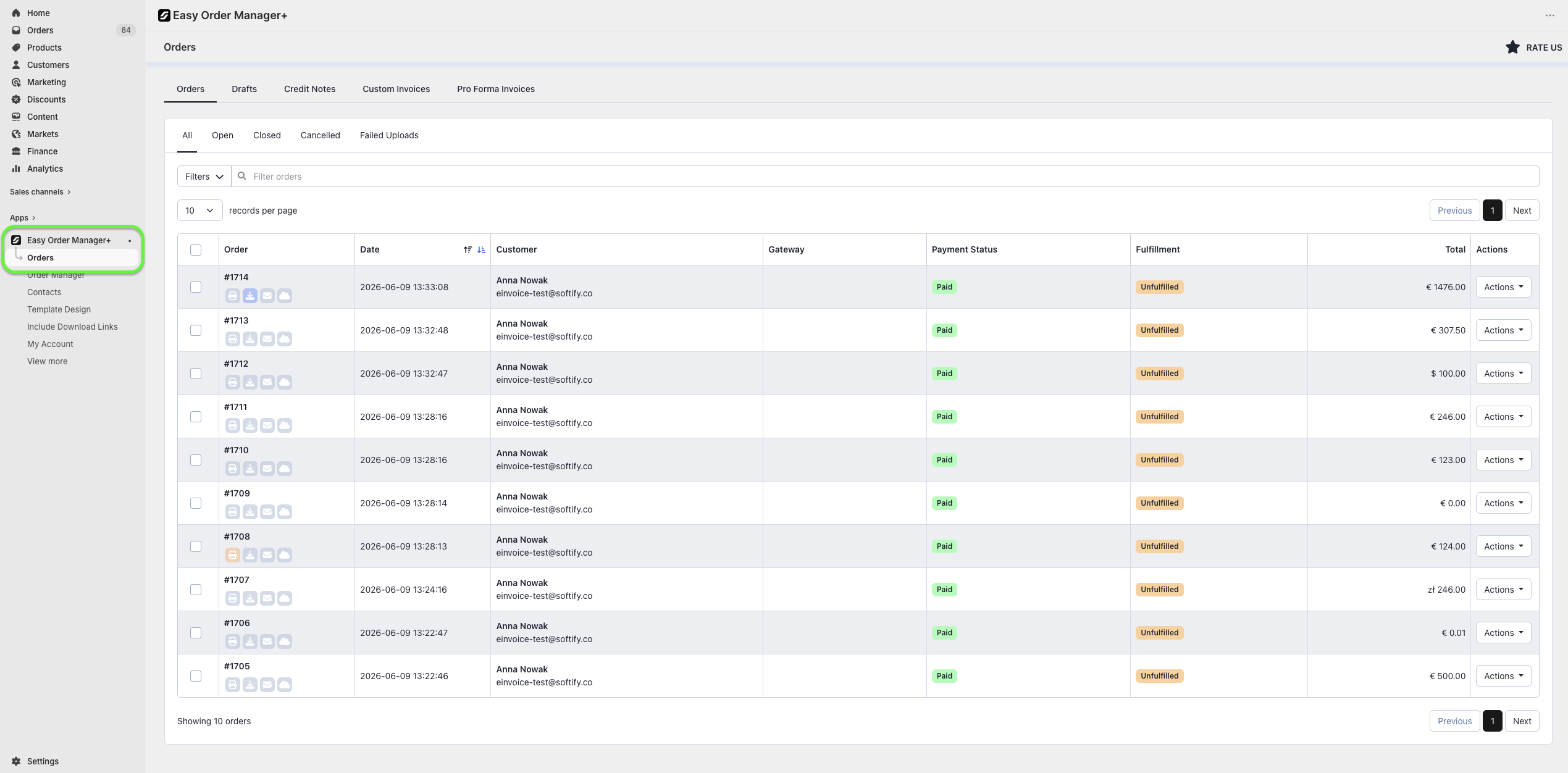
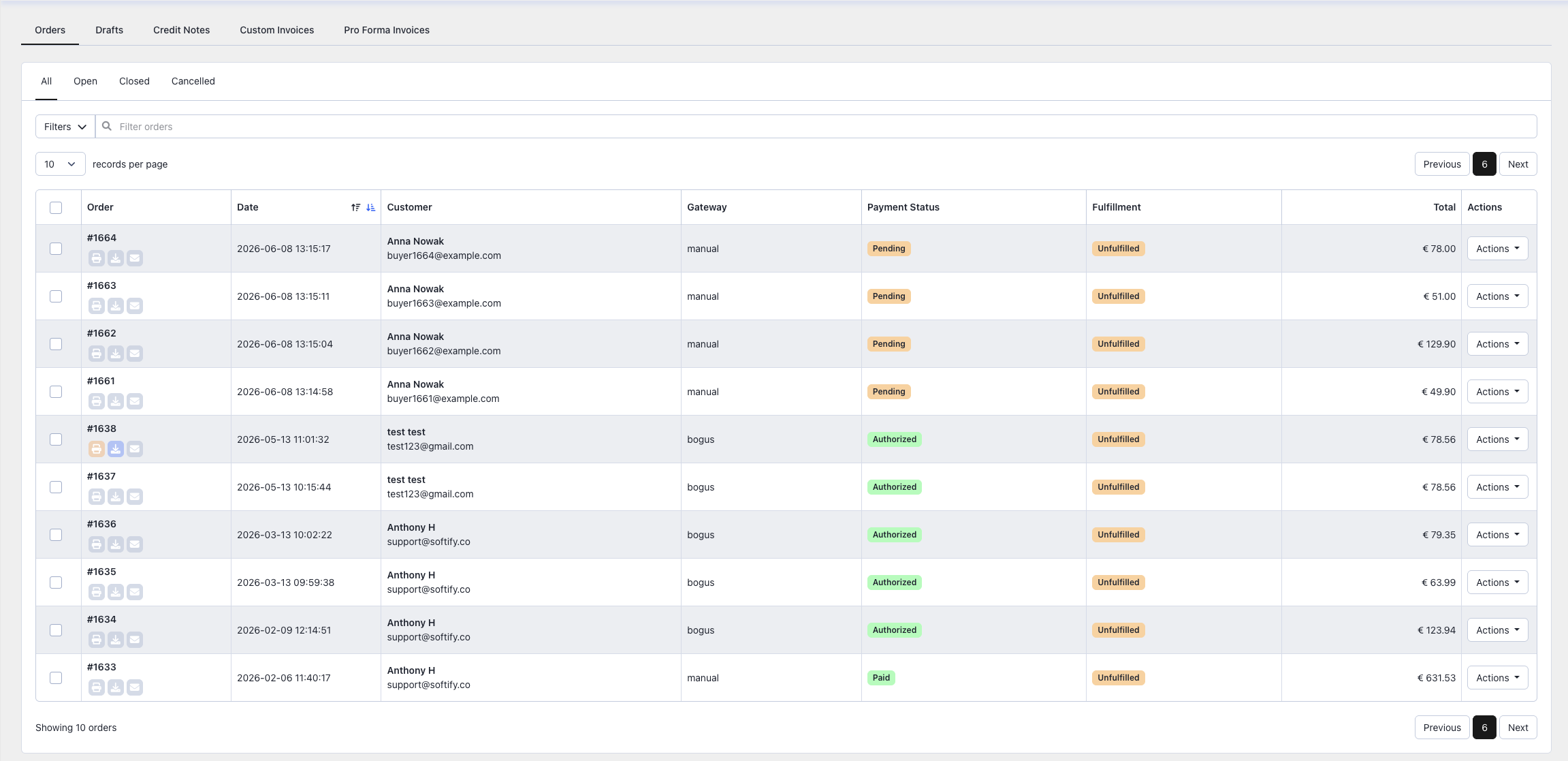
Step 4: Select the order you want to update by clicking on its order number.
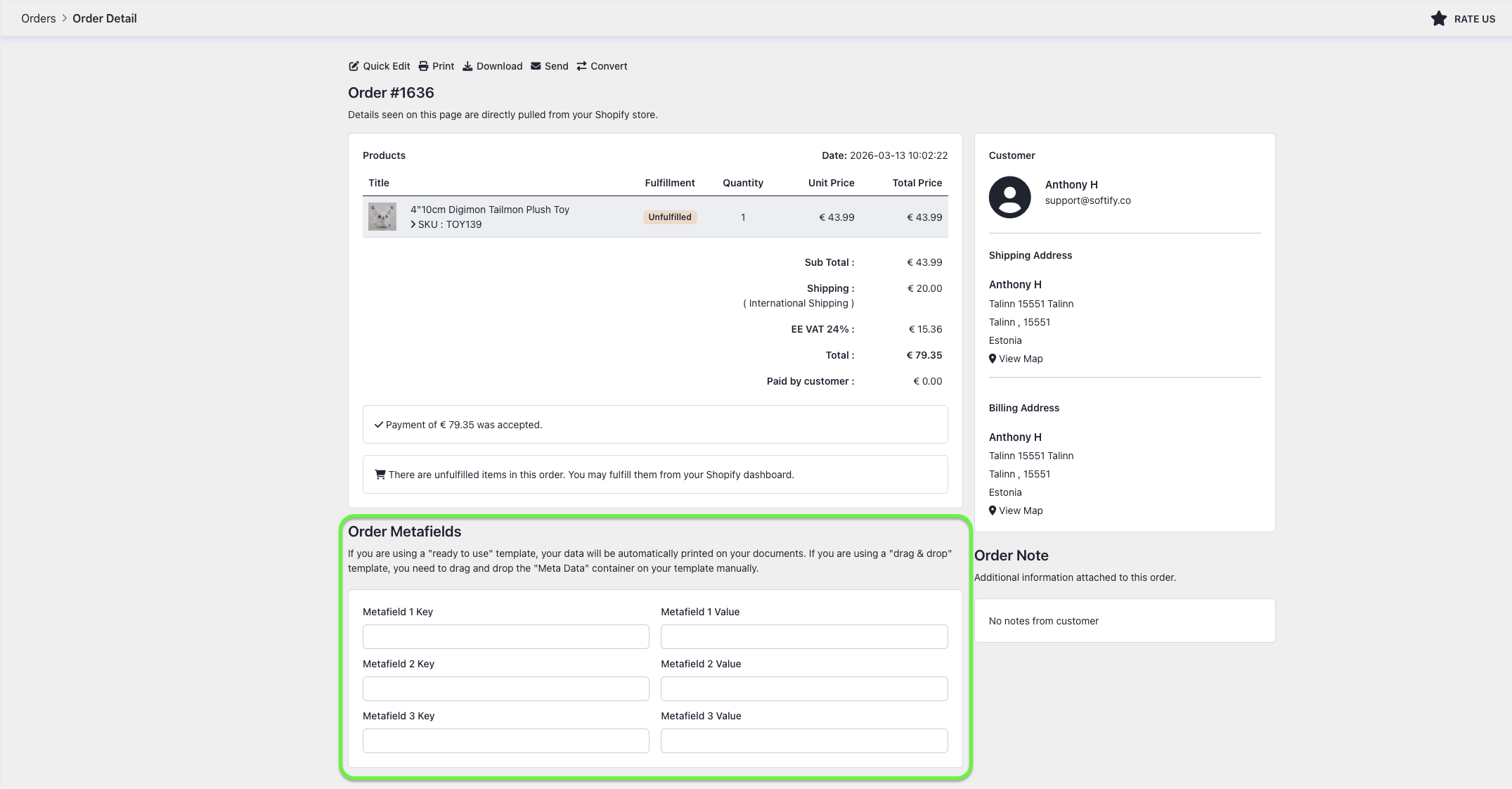
Step 5: Scroll down to the Order Metafields section.
Step 6: Enter values for the Key and Value fields. You can define up to three metafields.
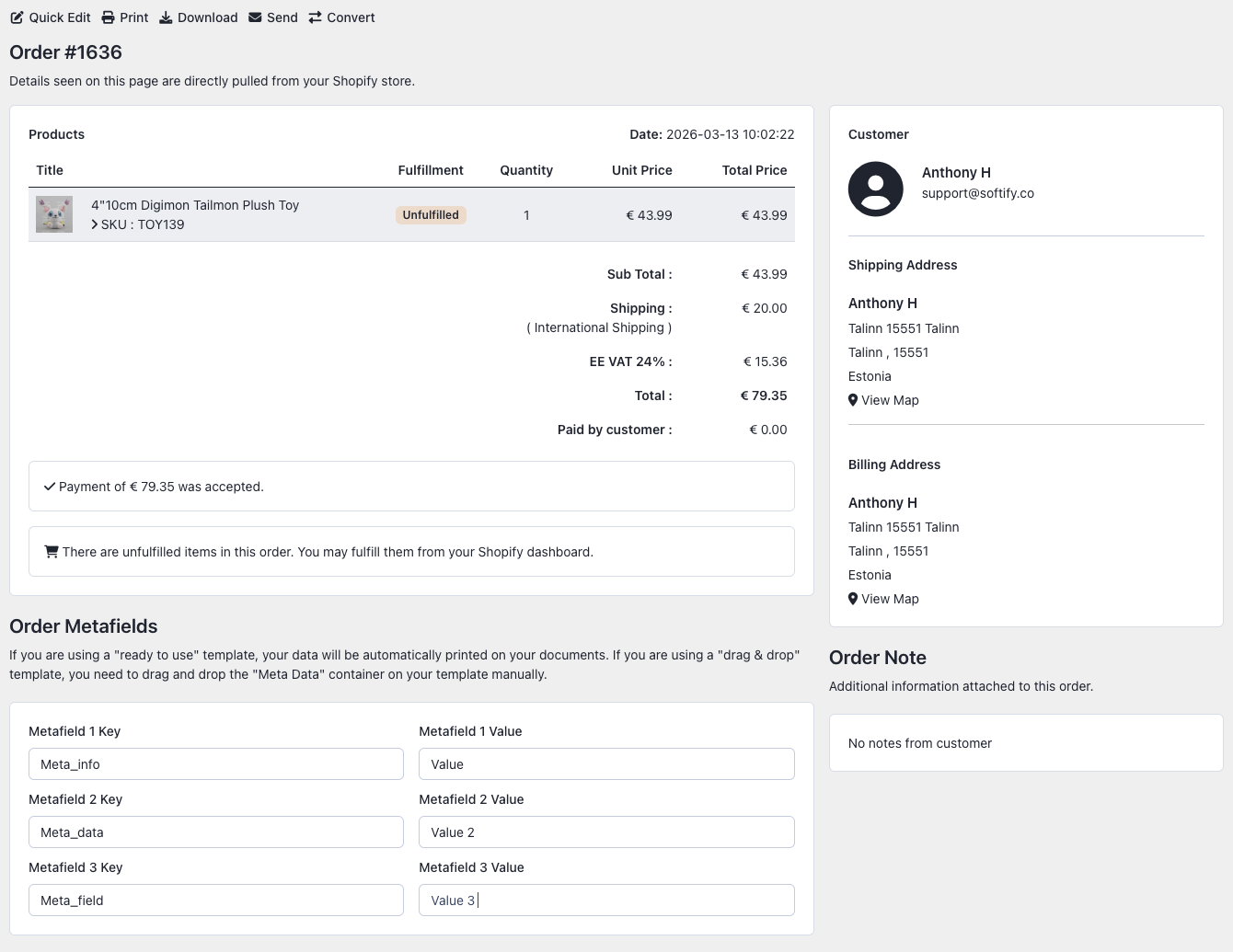
Step 7: Once completed, click the Save button at the top center of the screen to apply your changes.

If you are using a Ready-to-Use template, the metafield data automatically appears on your document.
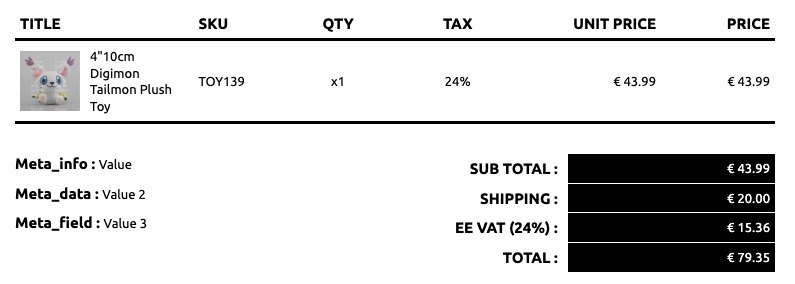
If you are using a Drag & Drop template, you must manually add metafield containers to the design.
- From the dashboard, click on Template Design.
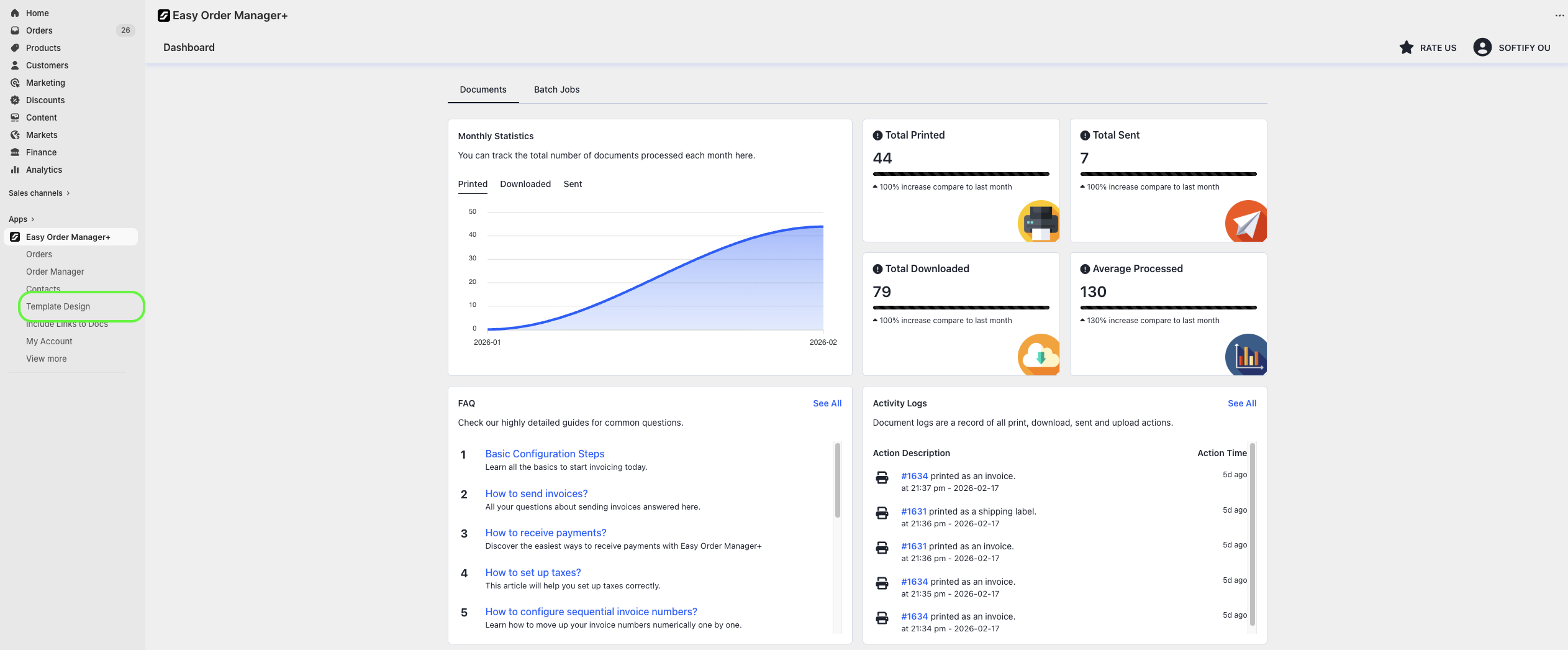
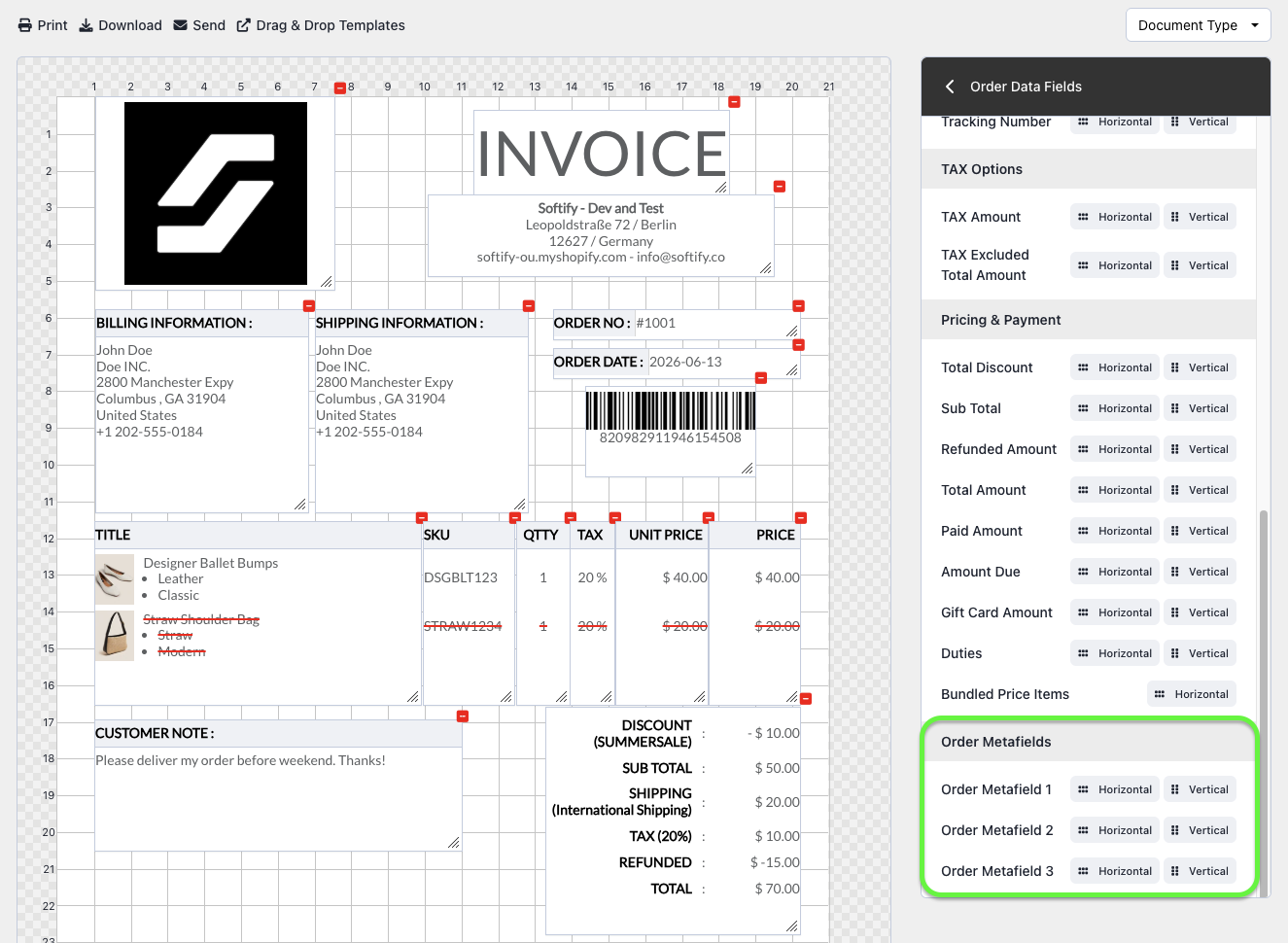
- Click on Order Data Fields.

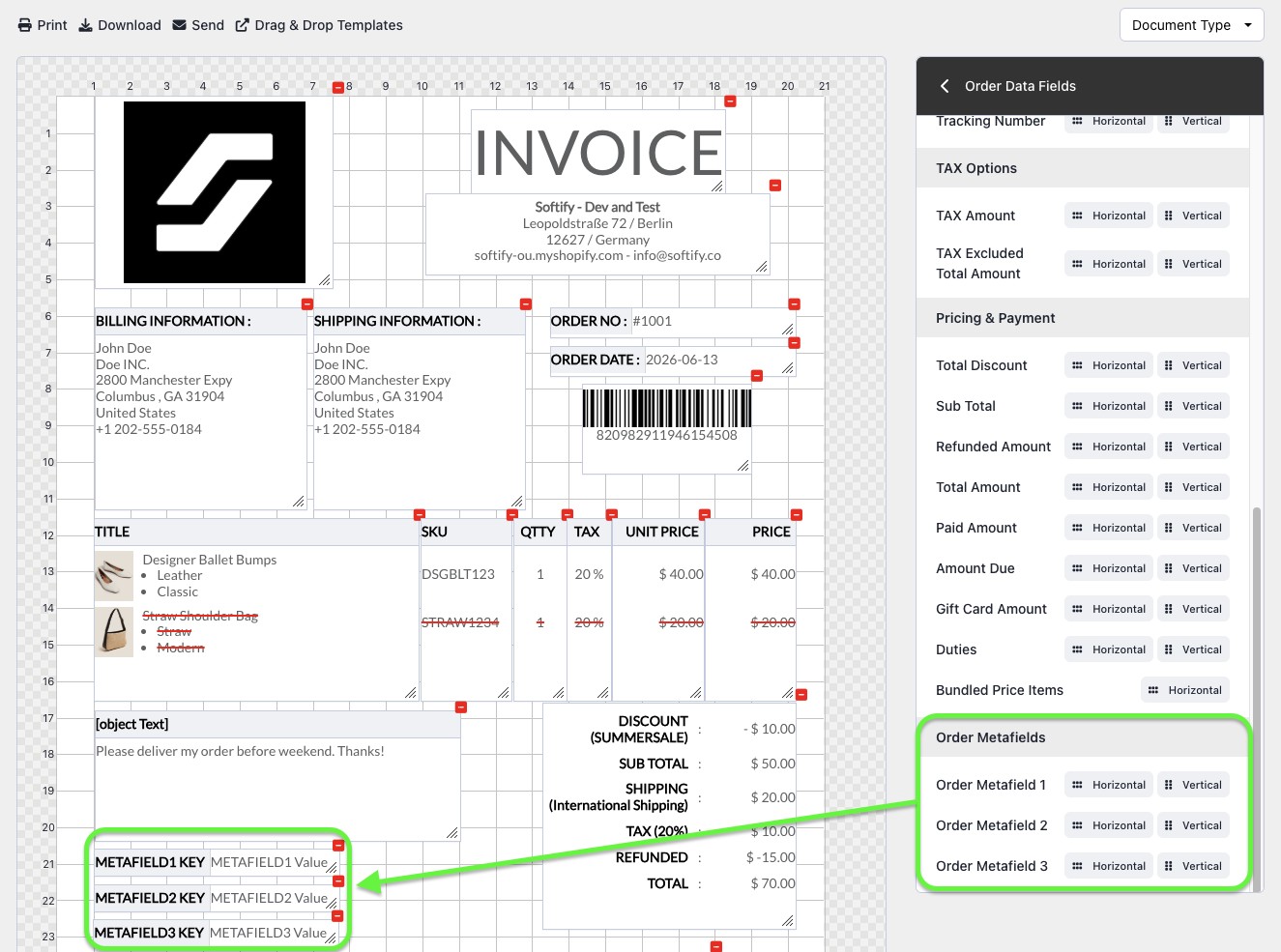
- Choose Horizontal or Vertical layout depending on how you want the metafields displayed (for example, side by side or stacked).
- Drag and drop the Order Metafield 1–3 containers to the desired location on your template, then click Save Changes to finalize your template.
Need Additional Help?
If you are still experiencing issues, contact our support team:
- Visit the Help Center section within your Easy Order Manager+ dashboard to create a ticket.
- Or email us directly.