This guide provides all the essential steps to customize your invoice email settings in Easy Order Manager+.
Step 1: Log in to your Shopify account.
Step 2: Navigate to the Apps section of your Shopify store and select Easy Order Manager+. You will be automatically redirected to the app dashboard.

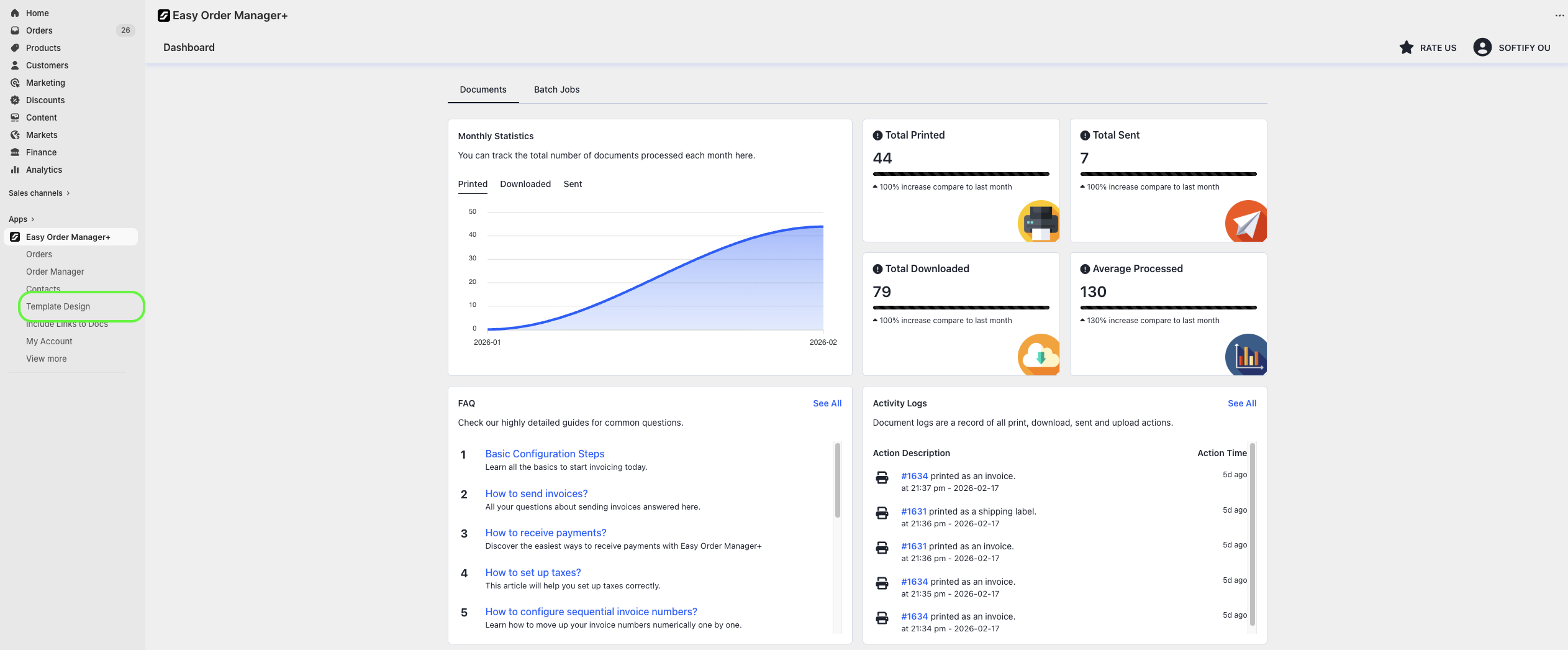
Step 3: From the dashboard, click on Template Design.
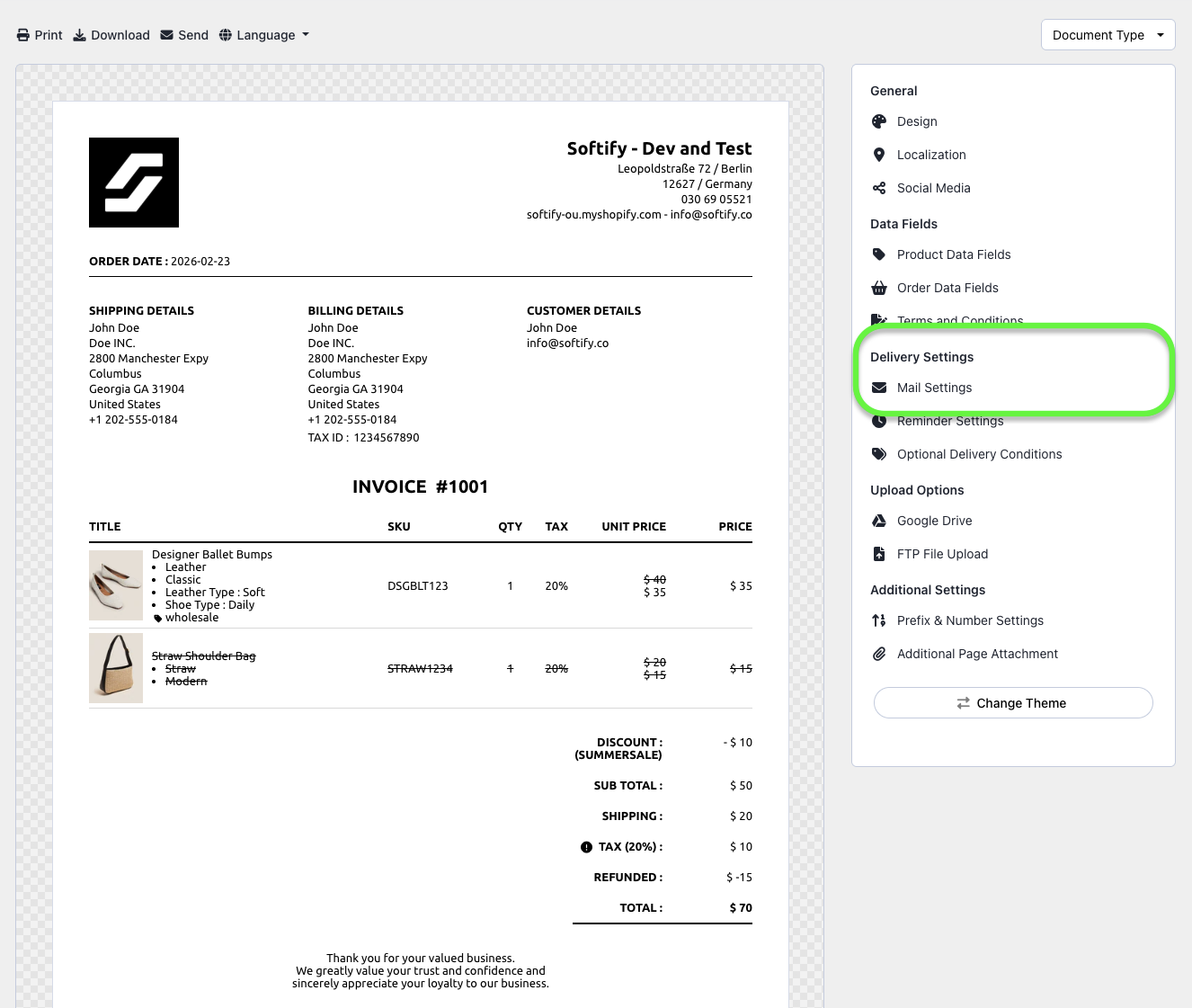
Step 4: Navigate to the Mail Settings section.
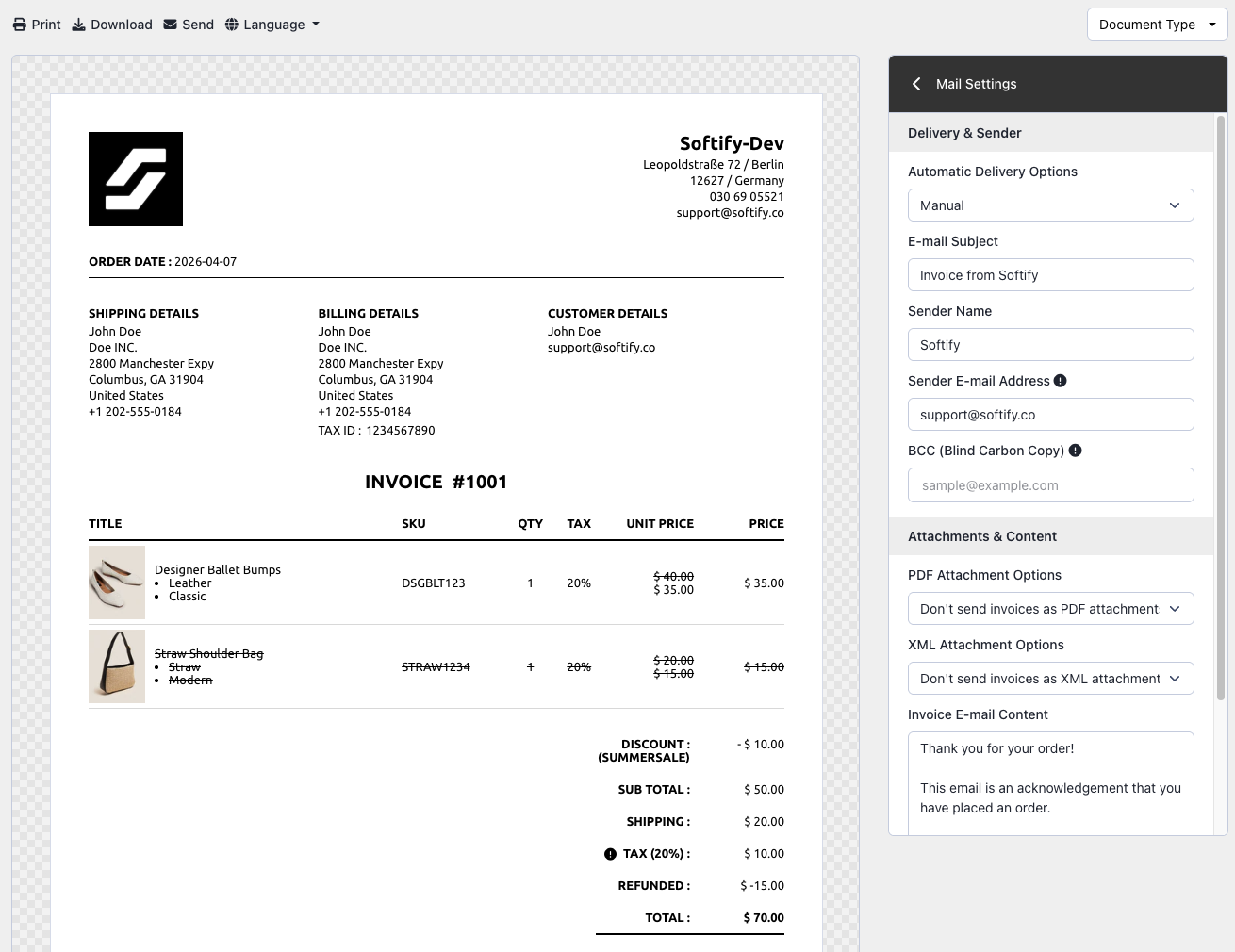
Step 5: Customize the Invoice Email Settings
Under the Delivery & Sender section:
- Automatic Delivery Options: By default, this is set to Manual. If you’re on the Basic plan or higher, you can choose from:
- Auto on Order
- Auto on Payment
- Auto on Fulfillment
- Auto Only for Copy Address
- Email Subject: Customize the subject line of your invoice emails.
- Sender Name: Define the name your customers will see as the email sender.
- Sender Email Address: The email address displayed to customers as the sender.
- BCC (Blind Carbon Copy): Add additional email addresses to receive invoice copies without customer visibility.
Under the Attachments & Content section:
- Attachment Options: Choose whether to send the invoice as a PDF attachment.
- XML Attachment Options: Choose whether to include the invoice as an XML attachment.
- Invoice Email Content: Customize the body of the invoice email.
- Quick Edit Email Content: Adjust the email content used when sending invoices via Quick Edit.
Step 6: Once you’ve made your selections, click the Save button at the top center of the screen to apply your changes.

Need Additional Help?
If you’re still experiencing issues, feel free to reach out to our support team:
- Visit the Help Center section within your Easy Order Manager+ dashboard to create a ticket
- Or email us directly
We’re always happy to help!