This guide provides all the essential information on customizing order data fields on your invoices using Easy Order Manager+.
Step 1: Log in to your Shopify account.
Step 2: Navigate to the Apps section of your Shopify store and select Easy Order Manager+. You will be automatically redirected to the app dashboard.

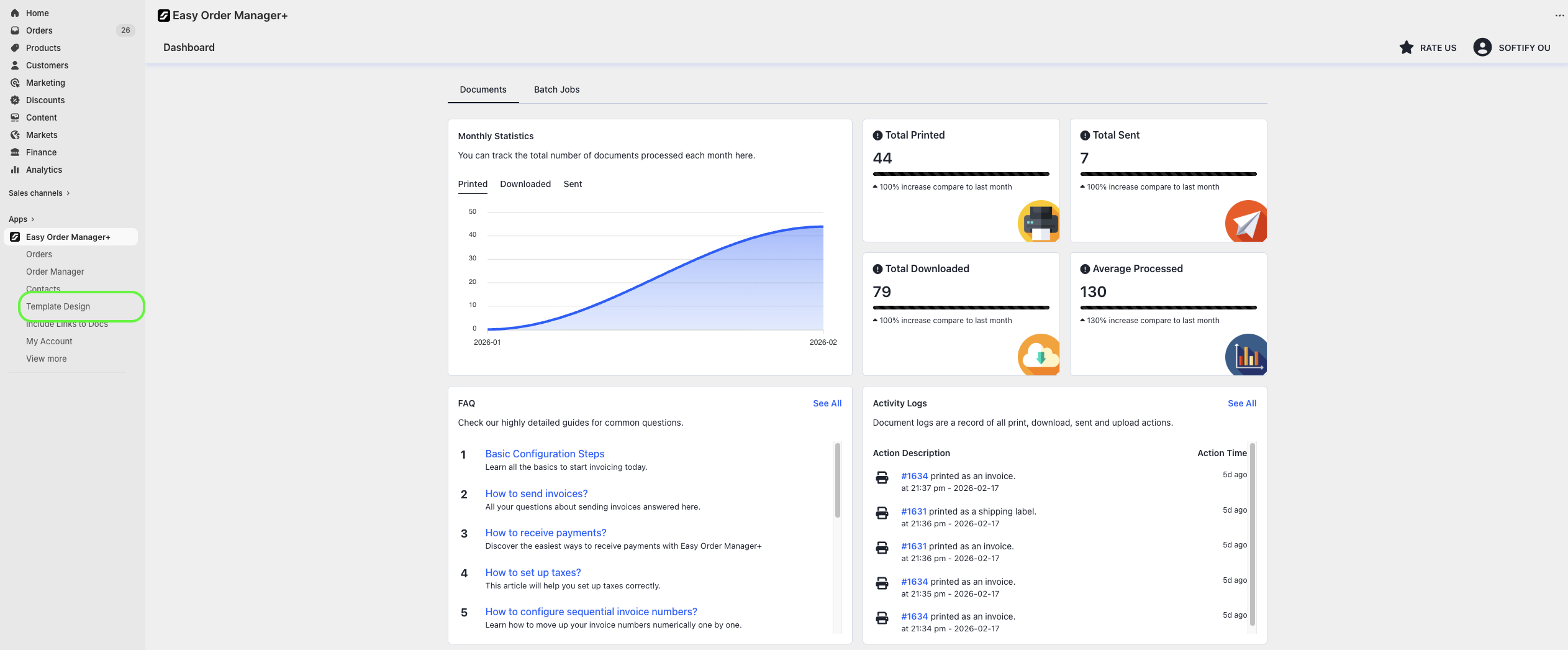
Step 3: From the dashboard, click on Template Design.
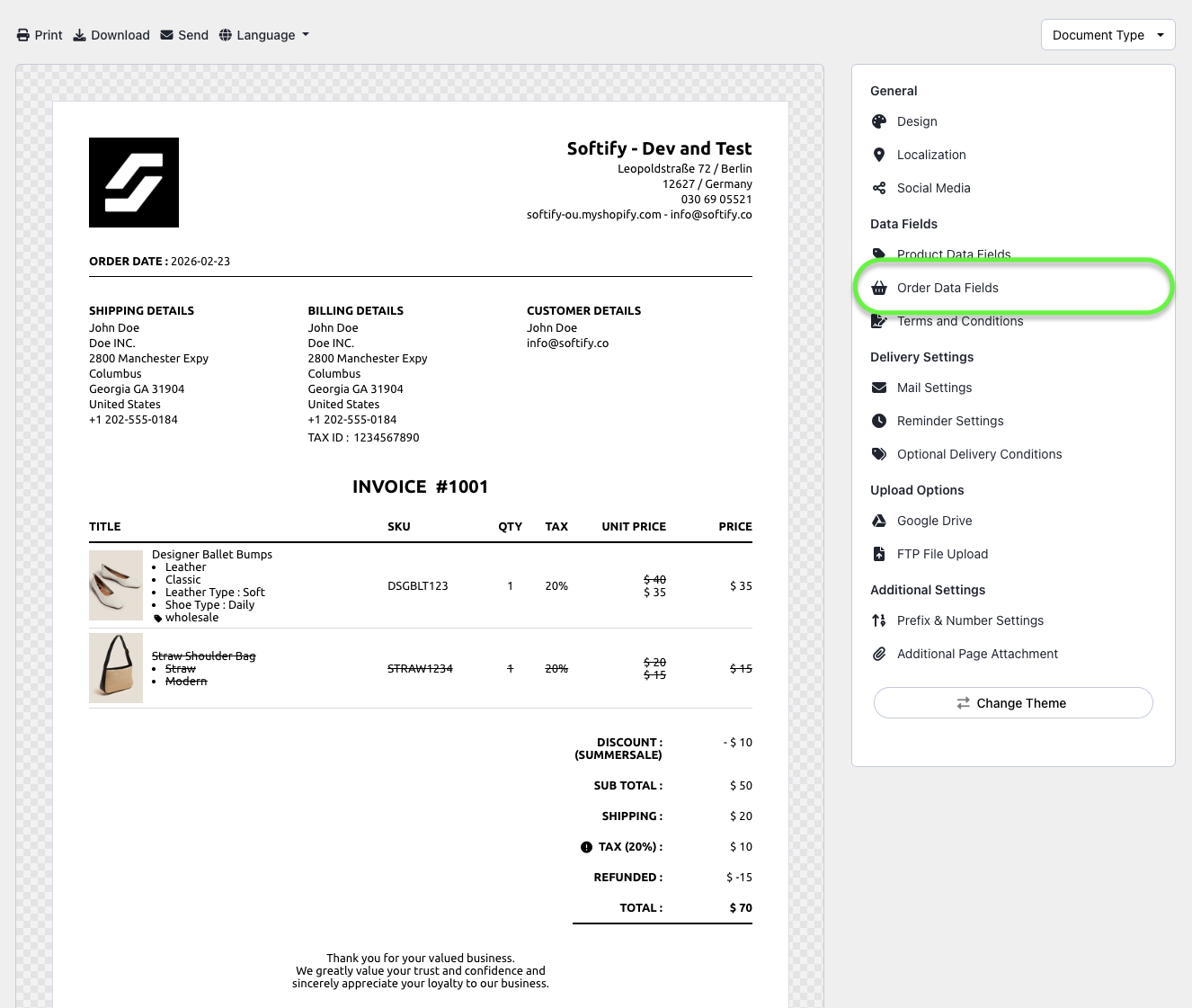
Step 4: Go to the Order Data Fields section.
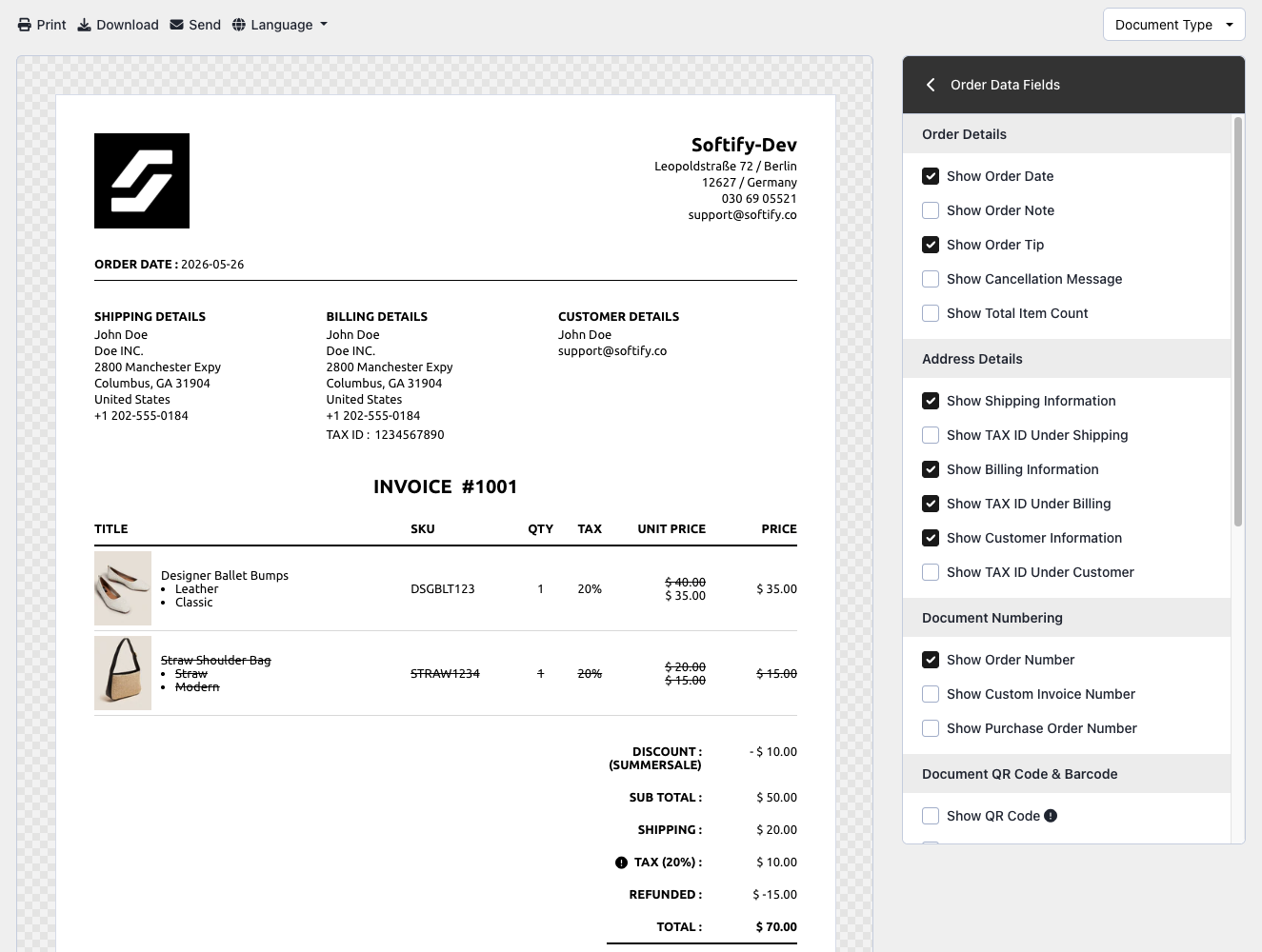
Step 5: You can turn on or off the options below:
Under the Order Details section
- Show Order Date
- Show Order Note
- Show Order Tip
- Show Cancellation Message
- Show Total Item Count
Under the Address Details section
- Show Shipping Information
- Show Billing Information
- Show Customer Information
Note: When activating these options, you can also choose where to display the collected customer Tax Number.
Under the Document Numbering section
- Show Order Number
- Show Custom Invoice Number
- Show Purchase Order (PO) Number
Under the Document QR Code & Barcode section
- Show QR Code
- Show Barcode
Under the Shipping Details section
- Show Shipping Carrier
- Show Tracking Number
- Show Shipping Line
Under the TAX Options section
- Show TAX Line
- Show TAX Excluded Total Paid Line
- Show Combined Tax View
Under the Pricing & Payment section
- Show Discount Line
- Show Sub Total Line
- Show Gift Card Amount
- Show Duties
- Show Refunds
- Show Total Paid Line
- Show Paid & Amount Due Line
Step 6: Once you’ve made your selection, click the Save button at the top center of the screen to apply your changes.

Need Additional Help?
If you’re still experiencing issues, feel free to reach out to our support team:
- Visit the Help Center section within your Easy Order Manager+ dashboard to create a ticket.
- Or click here to email us directly.
We’re always happy to help!