This guide provides all the essential information for uploading your invoices to an FTP server using Easy Order Manager+.
Manual uploads to an FTP server are also supported for Drafts, Packing Slips, Return Labels, and Shipping Labels.
Step 1: Log in to your Shopify account.
Step 2: Navigate to the Apps section of your Shopify store and select Easy Order Manager+. You will be automatically redirected to the app dashboard.

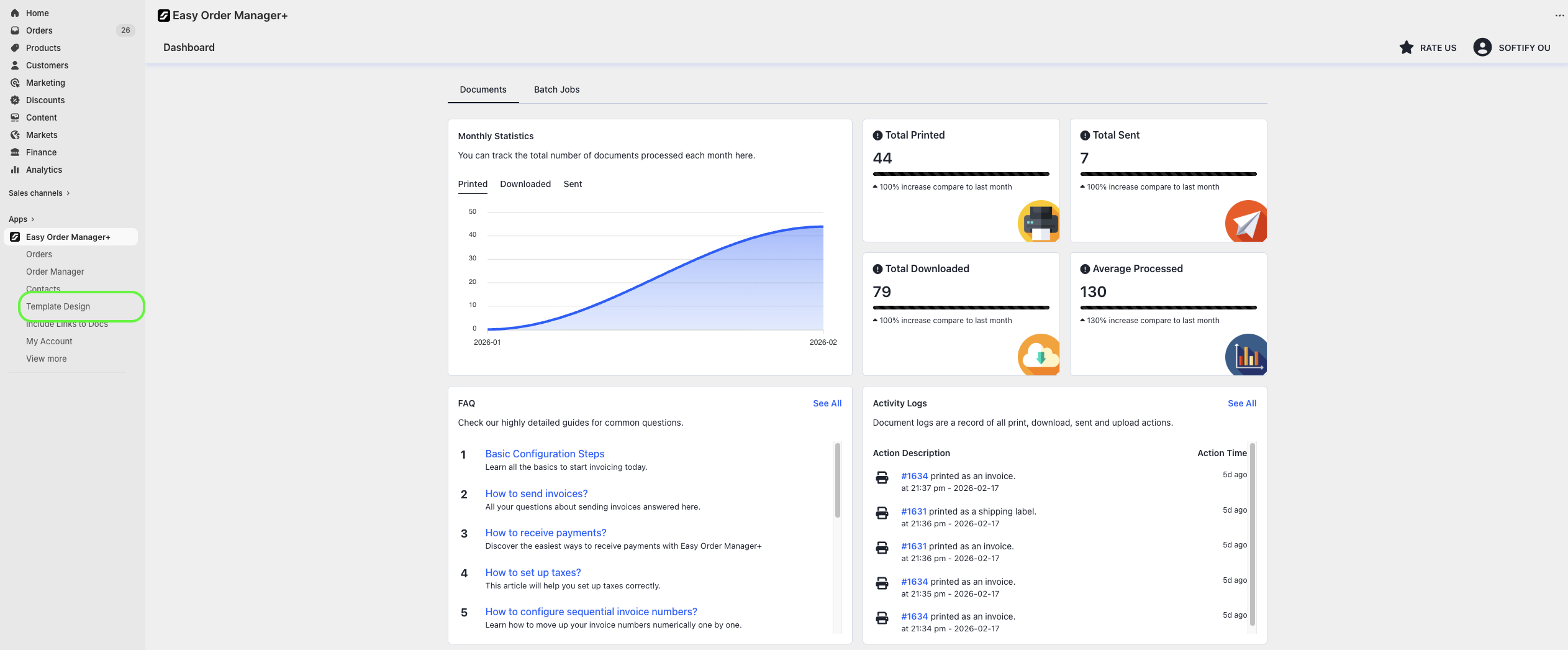
Step 3: From the dashboard, click on Template Design.
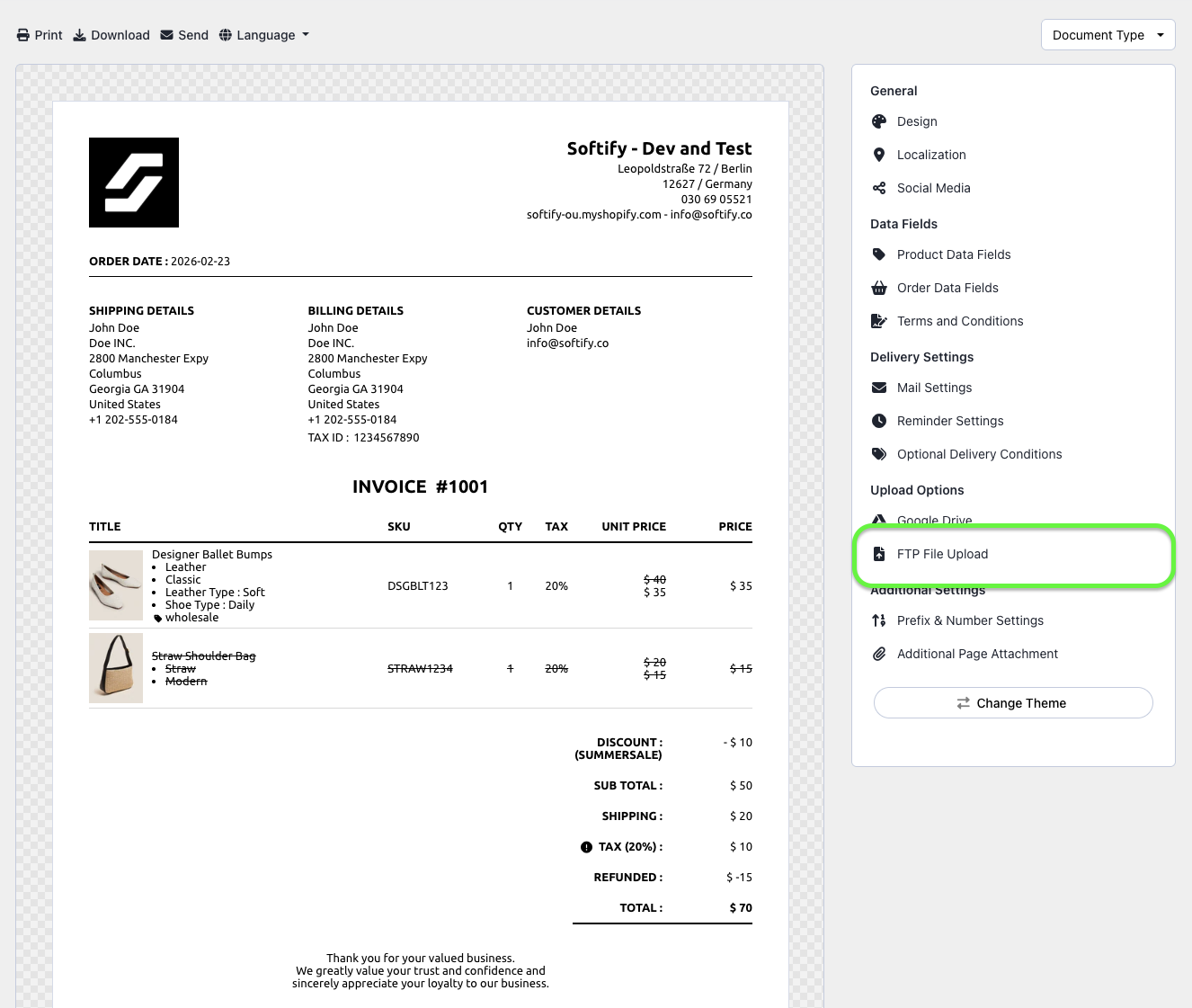
Step 4: Select FTP File Upload.
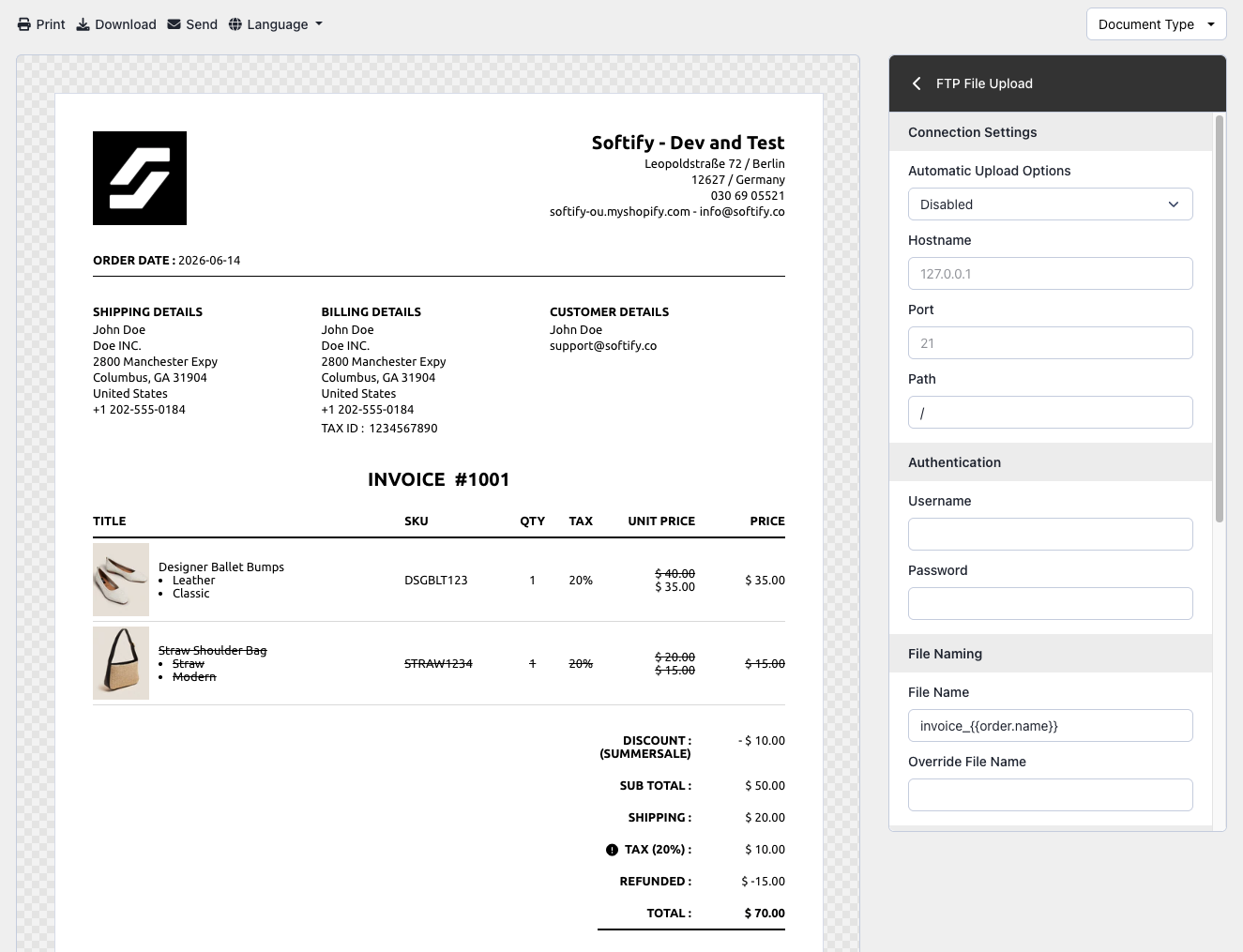
Step 5: Enter the required FTP connection information:
Connection Settings
- Automatic Upload Options: Choose when invoices should be uploaded:
- Disabled (default)
- Auto On Order: Upload when the order is placed
- Auto On Payment: Upload when payment is completed
- Auto On Fulfillment: Upload when the order is fulfilled
- Hostname: FTP server’s IP address or domain
- Port: FTP server port number
- Path: Directory path where invoices should be stored
Authentication
- Username: FTP login username
- Password: FTP login password
File Naming
- Filename: Filename for the uploaded invoices. Default:
invoice_{{order.name}}. To use a custom invoice number:invoice_{{order.custom_invoice_name}} - Override File Name (Optional): Use this to upload edited versions of invoices without overwriting the original. Example:
invoice_{{order.name}}_edited. If left blank, this feature is disabled.
Automation Rules
Control which invoices are uploaded based on specific conditions:
- Upload invoices automatically to orders from customers with these tags: Only if customer has specified tags.
- Do not upload invoices automatically to orders from customers with these tags: Exclude orders with specified customer tags.
- Upload invoices automatically to the orders with these tags: Only if order has specified tags.
- Do not upload invoices automatically to the orders with these tags: Exclude orders with specified tags.
- Upload invoices automatically to the orders with these payment gateways: Only for orders paid through specified gateways.
- Do not upload invoices automatically to the orders with these payment gateways: Exclude orders paid through specified gateways.
- Upload invoices automatically for Shopify POS orders: Activate/deactivate uploads for POS orders.
Step 6: Once you’ve made your selection, click the Save button at the top center of the screen to apply your changes.

Need Additional Help?
- Visit the Help Center section within your Easy Order Manager+ dashboard to create a ticket
- Or click here to email us directly.
We’re always happy to help!