This guide provides all the essential steps for enabling automatic credit note generation in Easy Order Manager+.
Step 1: Log in to your Shopify account.
Step 2: Navigate to the Apps section of your Shopify store and select Easy Order Manager+. You will be automatically redirected to the app dashboard.

Step 3: Click Template Design and select Credit Note from the Document Type dropdown menu.
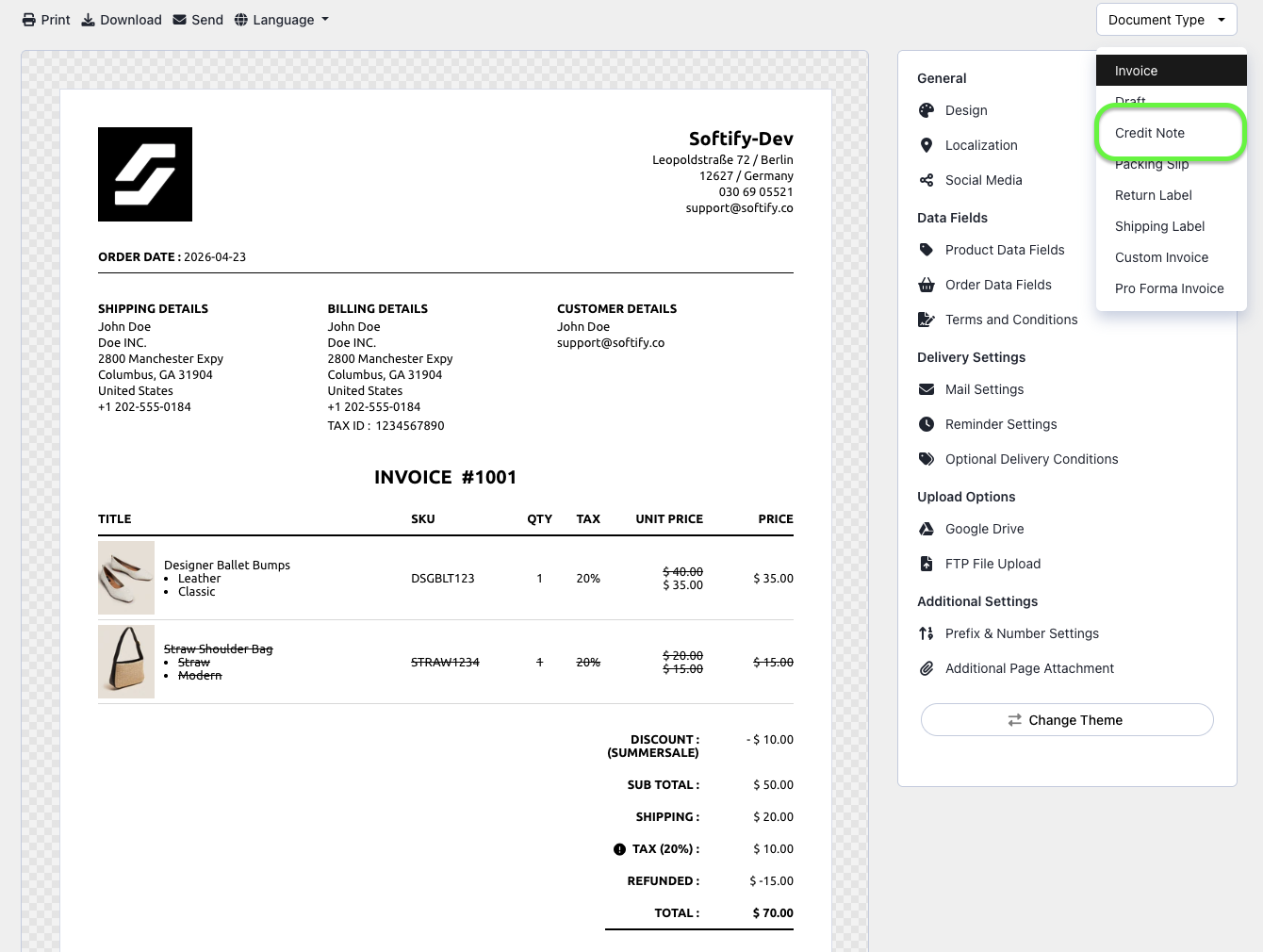
Step 4: Click on Automatic Generation Settings.

Step 5: Choose one or more of the available triggers for automatic credit note creation:
- Create when order is canceled – A credit note will be generated as soon as the order is canceled.
- Create when order is refunded – A credit note will be generated when the entire order is refunded.
- Create when order is partially refunded – A credit note will be generated when a partial refund is issued.
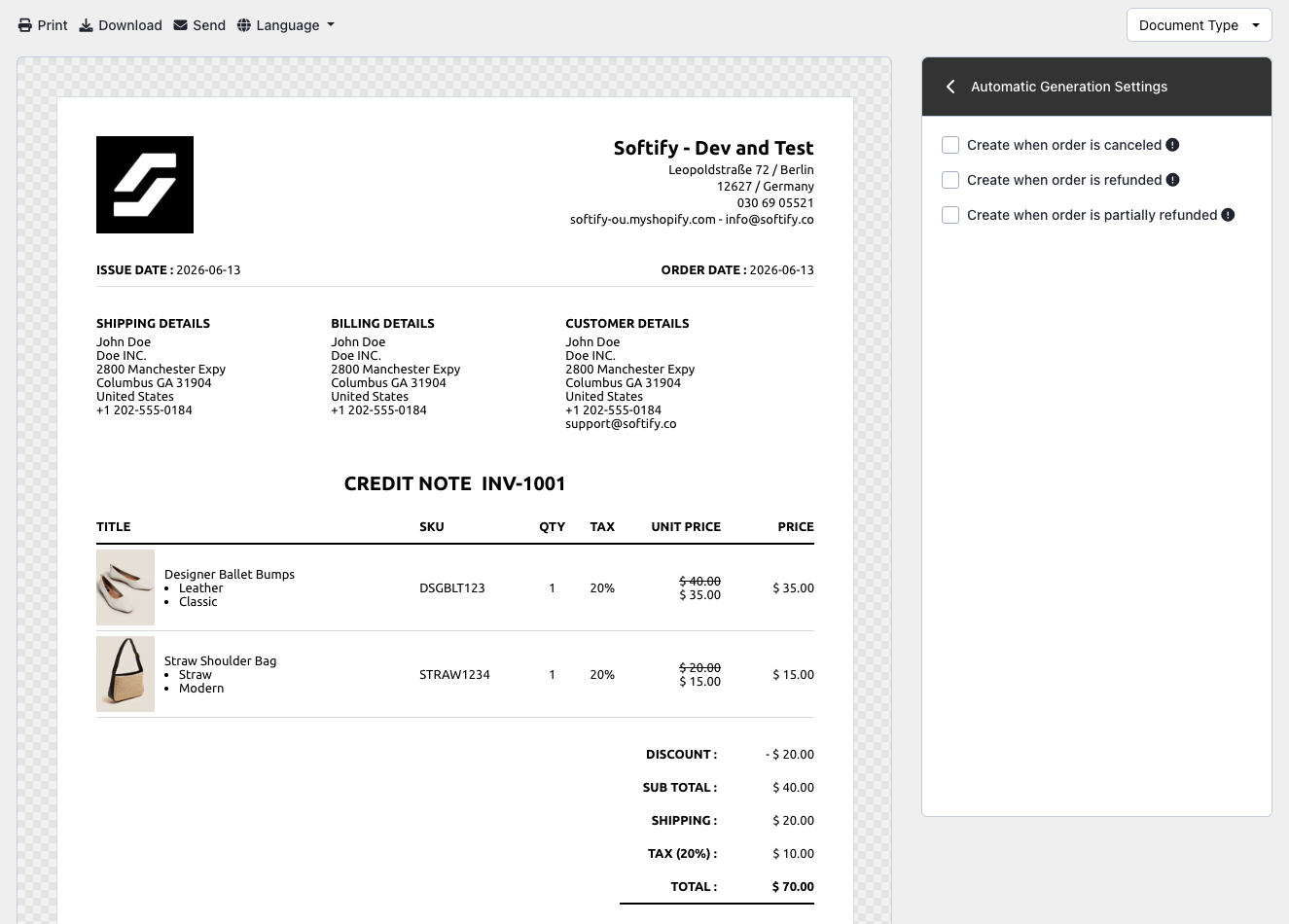
Step 6: Once you’ve made your selection, click the Save button at the top center of the screen to apply your changes.

Need Additional Help?
If you’re still experiencing issues, feel free to reach out to our support team:
- Visit the Help Center section within your Easy Invoice+ dashboard to create a ticket
- Or click here to email us directly.
We’re always happy to help!