This guide explains how to manage the social media icons displayed on your invoice templates in Easy Order Manager+.
Step 1: Log in to your Shopify account.
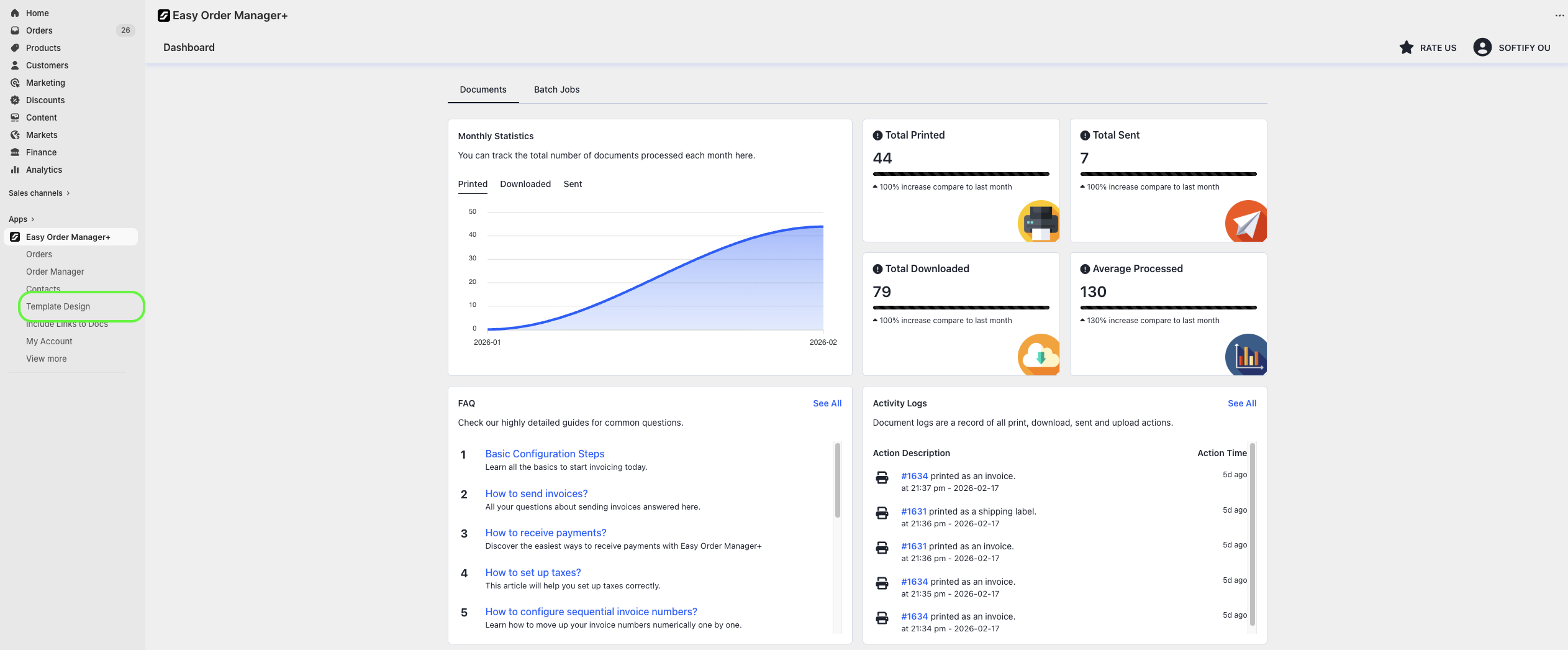
Step 2: Navigate to the Apps section of your Shopify store and select Easy Order Manager+. You will be automatically redirected to the app dashboard.

Step 3: From the dashboard, click on Template Design.
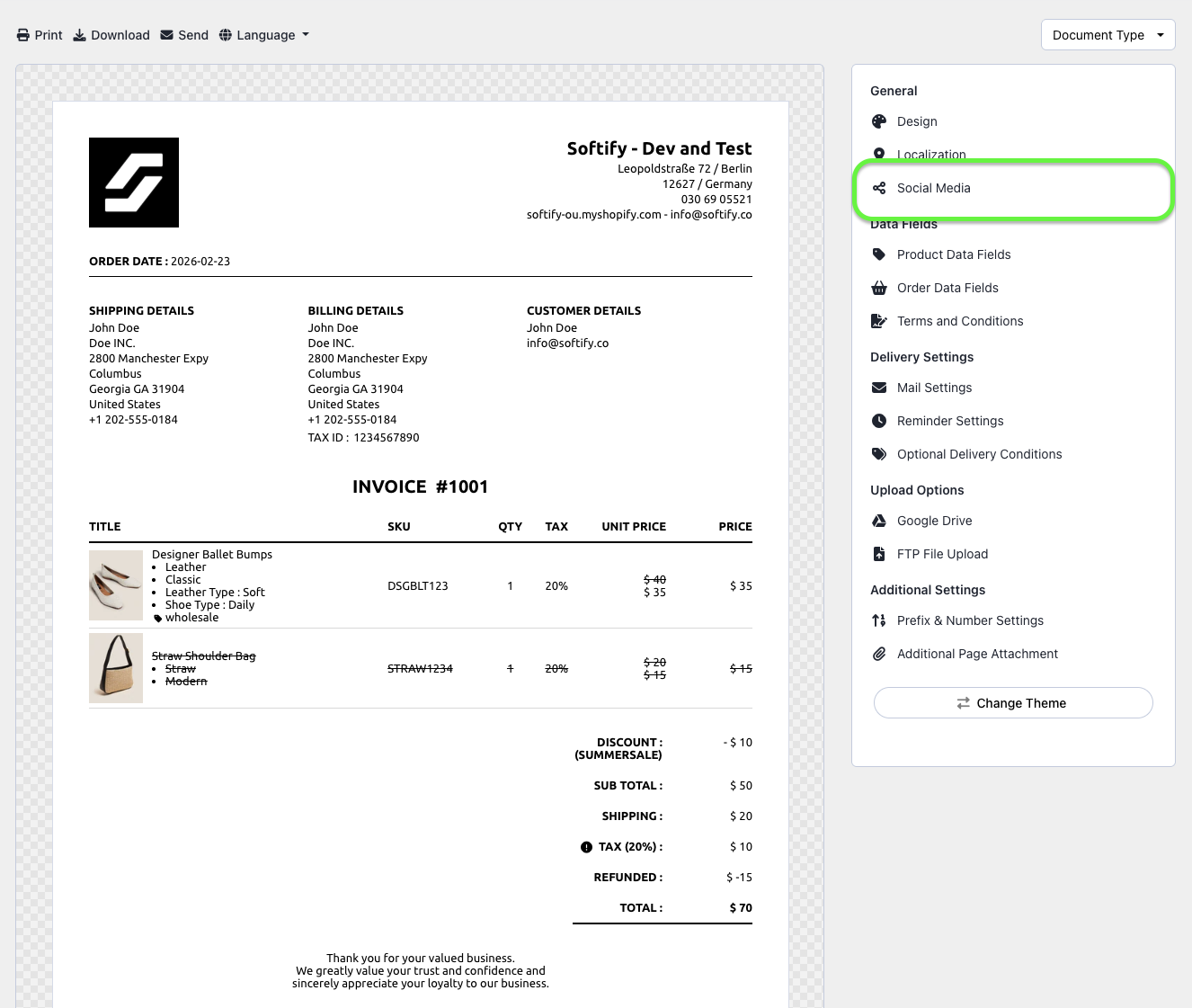
Step 4: Click on the Social Media section.
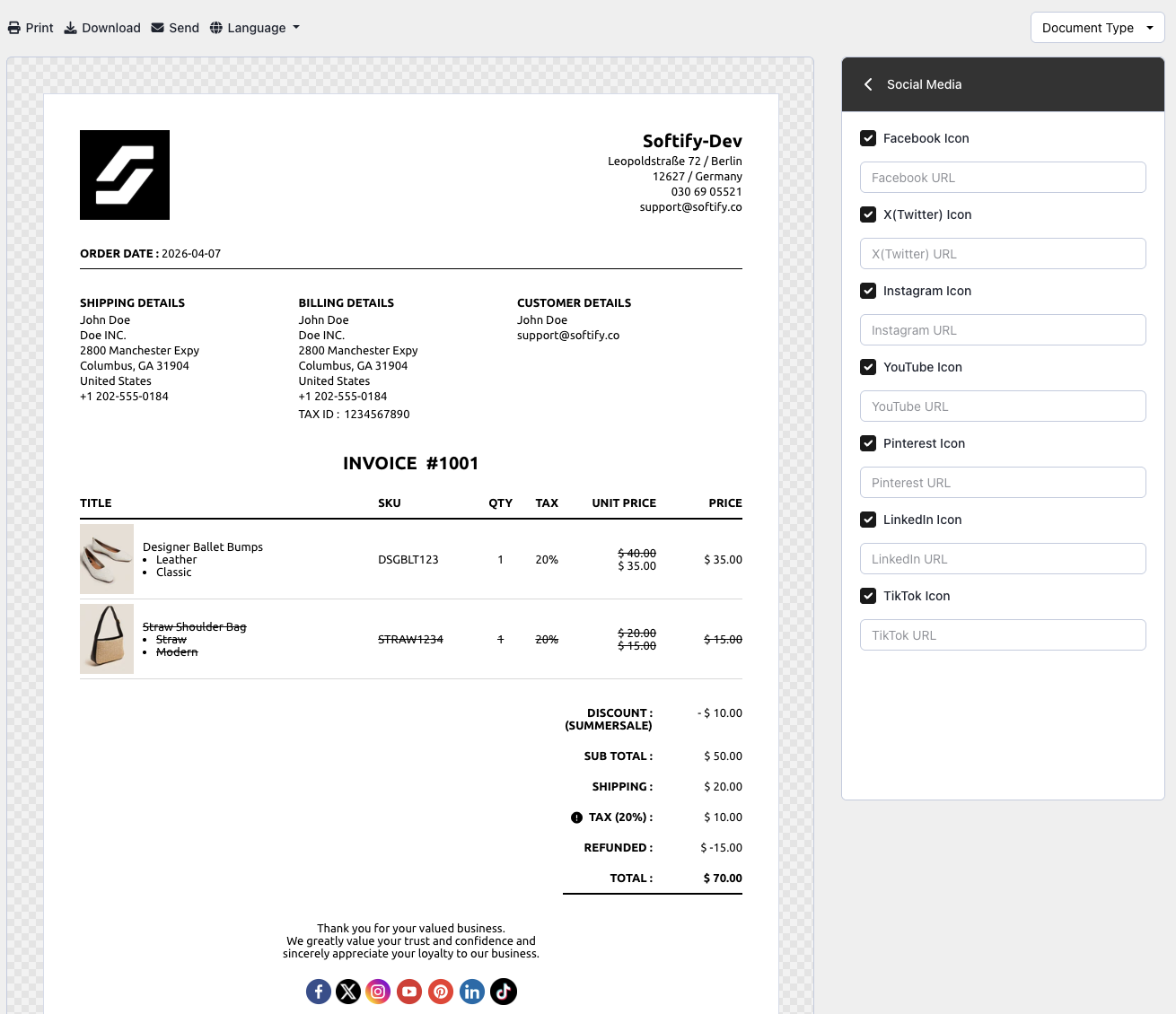
Step 5: In this section, you can:
- Show or hide social media icons
- Add or update links to your social media profiles
Step 6: Once you’ve made your selection, click the Save button at the top center of the screen to apply your changes.

Need Additional Help?
- Visit the Help Center section within your Easy Order Manager+ dashboard to create a ticket
- Or click here to email us directly.
We’re always happy to help!