This guide explains how to use the import feature to upload spreadsheet changes and update your Shopify products in bulk.
What is Importing?
Importing is the process of uploading a spreadsheet file containing product changes and applying those updates to your Shopify store. It is the ideal method for:
- Updating many products at once using Excel or Google Sheets.
- Applying price changes provided by a supplier.
- Updating inventory levels or descriptions across your entire catalog.
- Working on product data offline before pushing it live.
The Safest Workflow: Export First
The easiest way to ensure your file is formatted correctly is to export your products first. Open that file, make your changes (prices, tags, etc.), save it, and then import it back. This ensures the column names and formats are exactly what the app expects.
Supported File Types and Identifiers
- File Format: The app only accepts CSV (.csv) files. Standard Excel (.xlsx) or (.xls) files are not supported.
- Product Identifiers: Your spreadsheet must include at least one column to identify which product to update. You can use Handle (most reliable), Title, SKU, or Barcode.
Step-by-Step: How to Import
1. Prepare Your File
Ensure your first row is a header row (e.g., “Handle”, “Price”) and use one row per variant. Only include the identifier column and the specific fields you want to update.
2. Upload and Map Columns
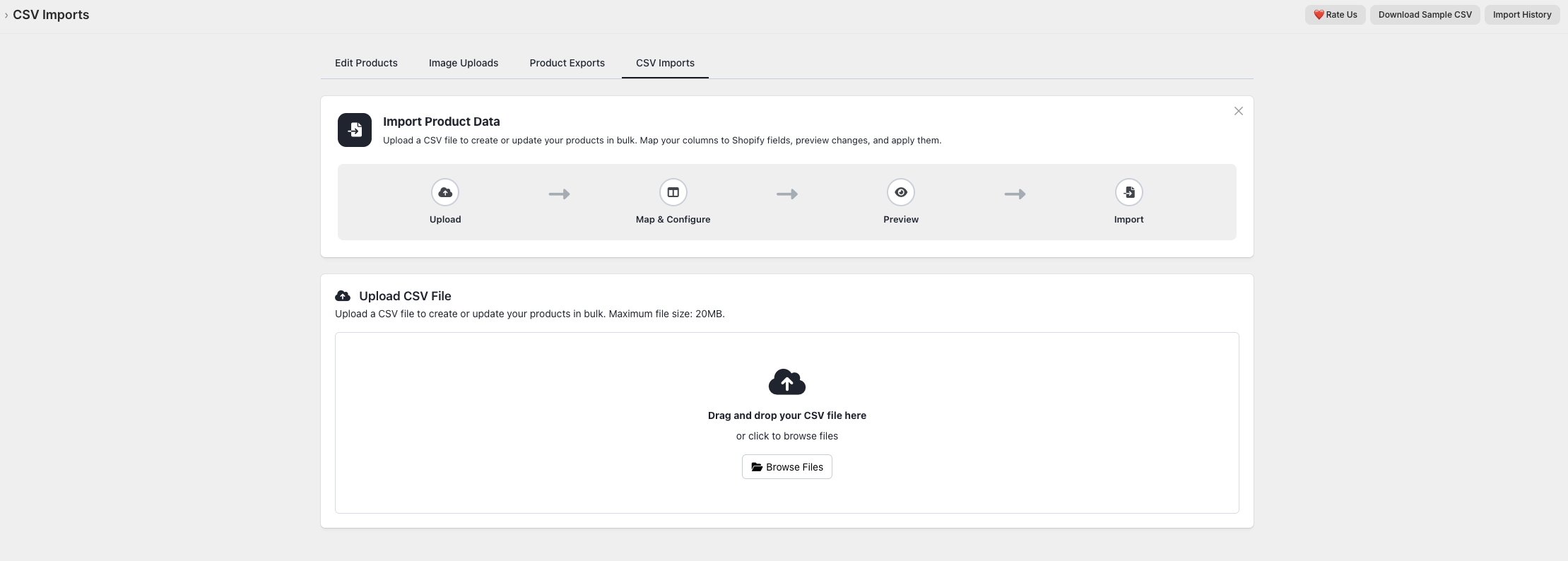
Go to Edit Products > Import and upload your CSV. The app will automatically try to match your spreadsheet columns to Shopify product fields. You can manually adjust these mappings or set a column to “Skip this column” if you don’t want it imported.
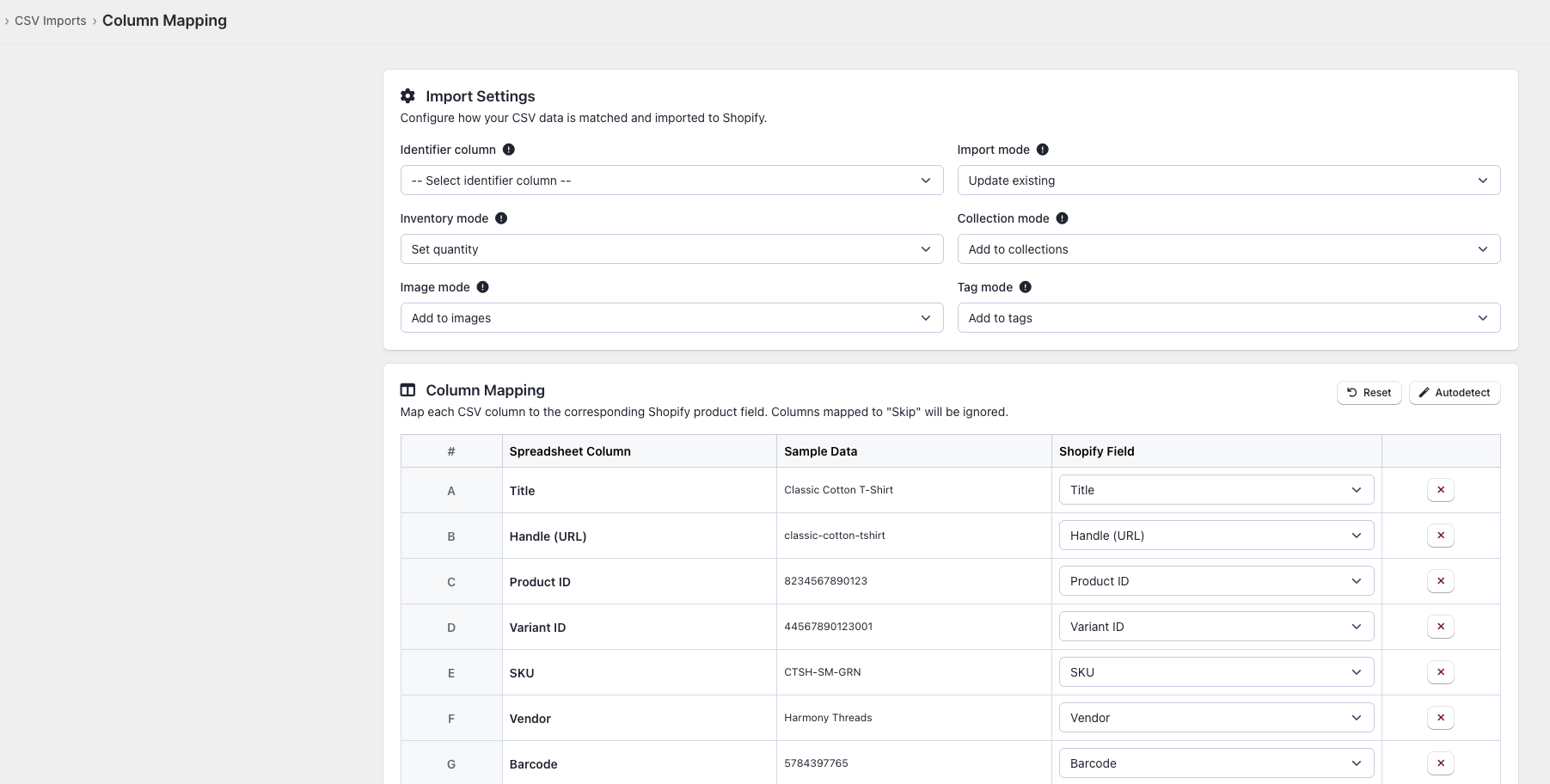
3. Preview and Run
The app provides a preview showing how many products were found and what changes are planned. Review this carefully before clicking Start Import.
Results and Monitoring
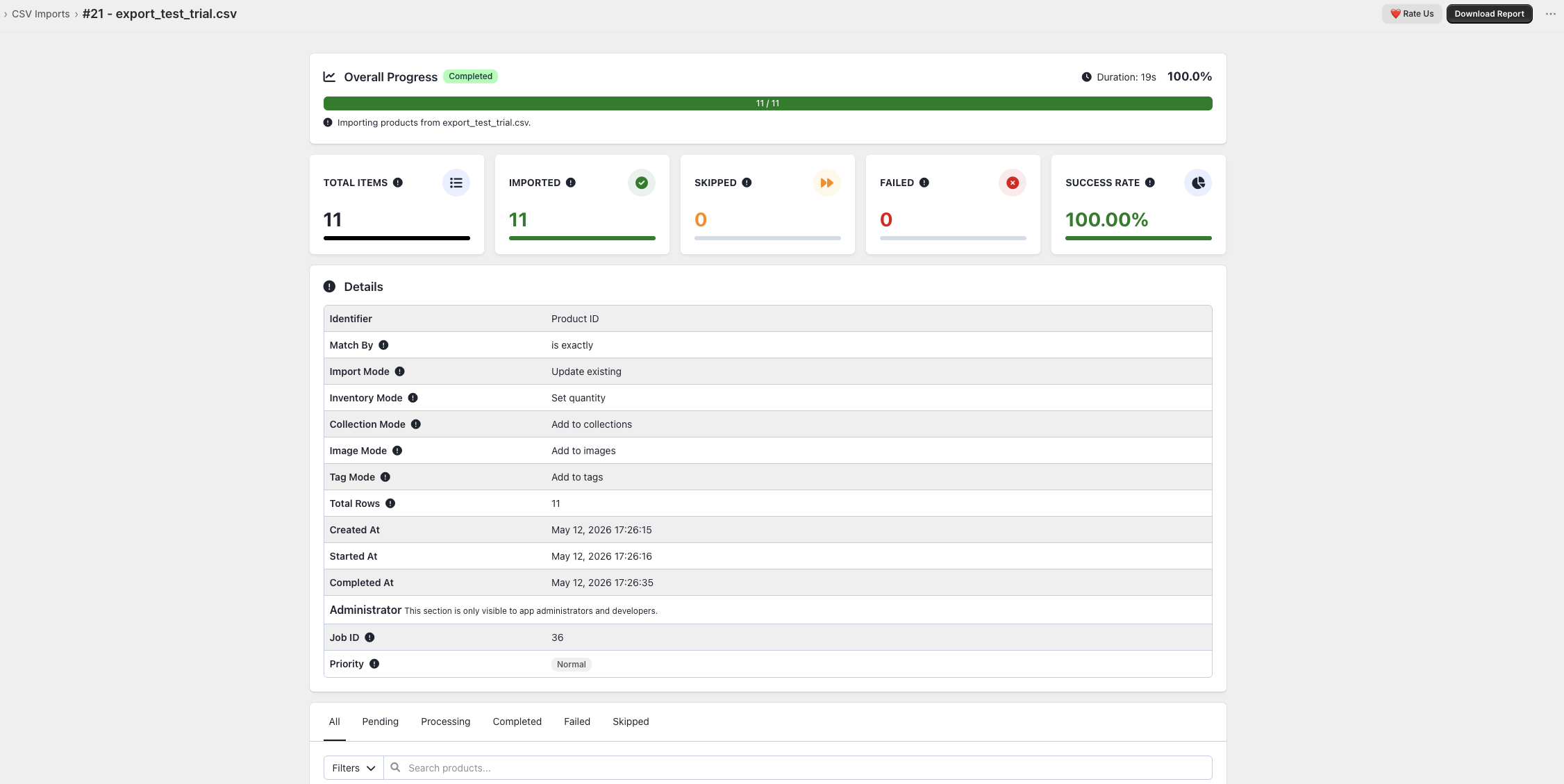
Once complete, the app summarizes the results:
- Successful: Products updated correctly.
- Failed: Products that could not be updated, along with an error explanation.
- Skipped: Rows that did not match any existing product handle, SKU, or barcode.
Common Mistakes to Avoid
- Extra Spaces: Hidden spaces before or after values can prevent the app from matching your products.
- Missing Identifiers: Every row must have a value in your identifier column (like the Handle or SKU).
- Character Encoding: If your data includes special characters or accents, save your file as CSV UTF-8 to ensure they display correctly.
Plan Details
Note: Importing requires a Basic plan or higher.
| Feature | Basic | Advanced | Enterprise |
|---|---|---|---|
| Monthly Imports | 50 | 250 | Unlimited |
| Max File Size | 20 MB | 20 MB | 20 MB |
| Max Rows per File | 100,000 | 100,000 | 100,000 |