Connecting your Google Drive or Dropbox account unlocks convenient features like direct image uploads and automated file delivery.
What Can You Do with Cloud Storage?
Integrating your cloud storage accounts provides three primary benefits:
- Upload product images directly: Upload straight from your Drive or Dropbox folder while the app automatically matches images to products based on filenames.
- Automatic export file delivery: Save exported product data directly to your cloud folders (Requires Advanced plan or higher).
- Automatic backup of results: Reports and edit results can be backed up automatically to your storage (Requires Advanced plan or higher).
How to Connect Your Accounts
Connecting Google Drive
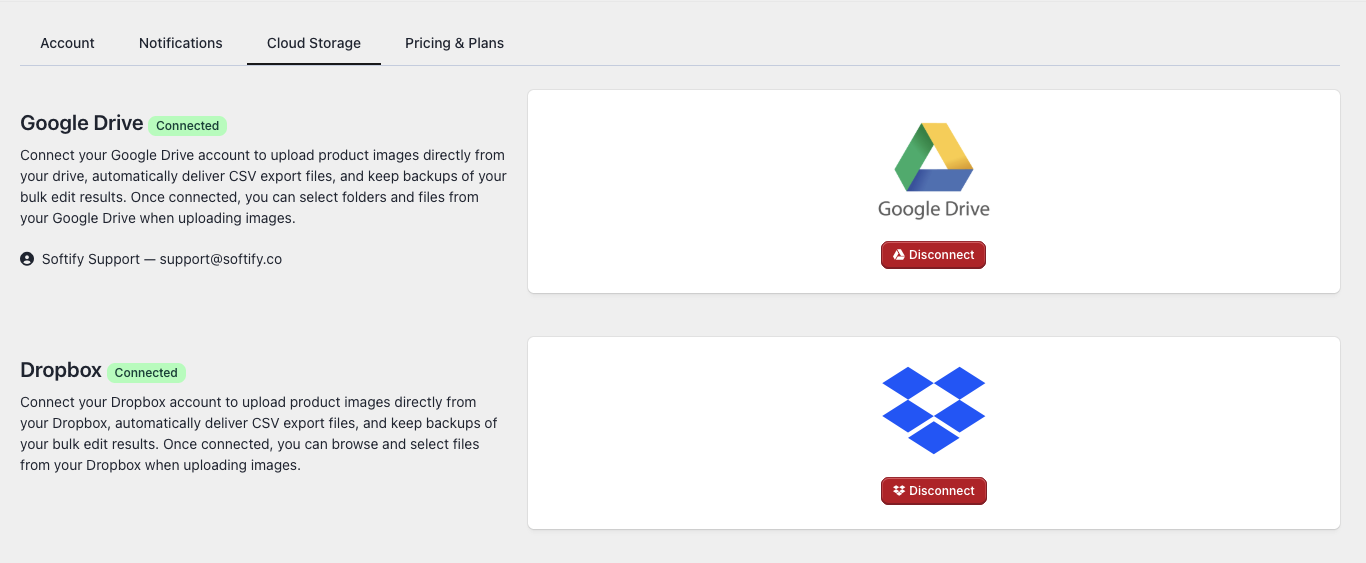
- Go to Settings and select the Cloud Storage tab.
- Click Connect Google Drive.
- Sign in via the Google window and click Allow to grant the app access.
- Once connected, your account name will appear with a green “Connected” status.
Connecting Dropbox
- Navigate to Settings > Cloud Storage.
- Click Connect Dropbox and sign in to your account.
- Click Allow to authorize the connection.
Using Cloud Storage
Image Uploads
This feature is available on all plans. To upload images:
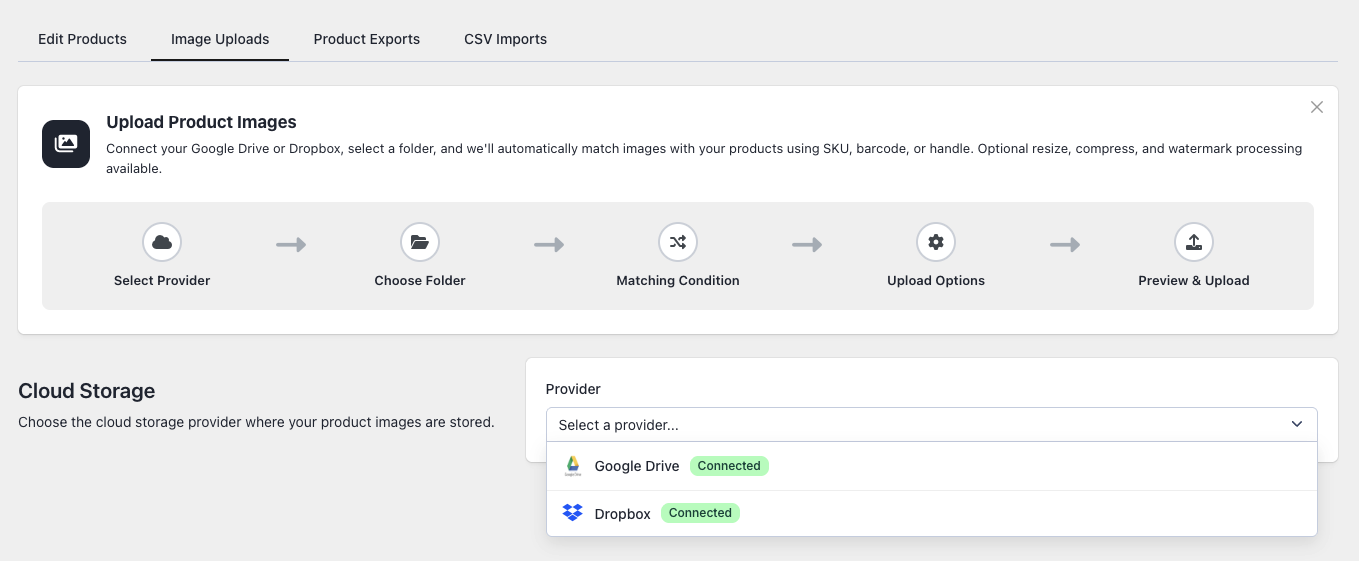
- Go to Edit Products > Image Upload.
- Select your provider and browse to the folder containing your photos.
- The app will scan the folder and match files by SKU, Title, or Barcode.
For more details, refer to “How to manage product images?”.
Export Delivery (Advanced Plan+)
Save your product exports automatically to the cloud:
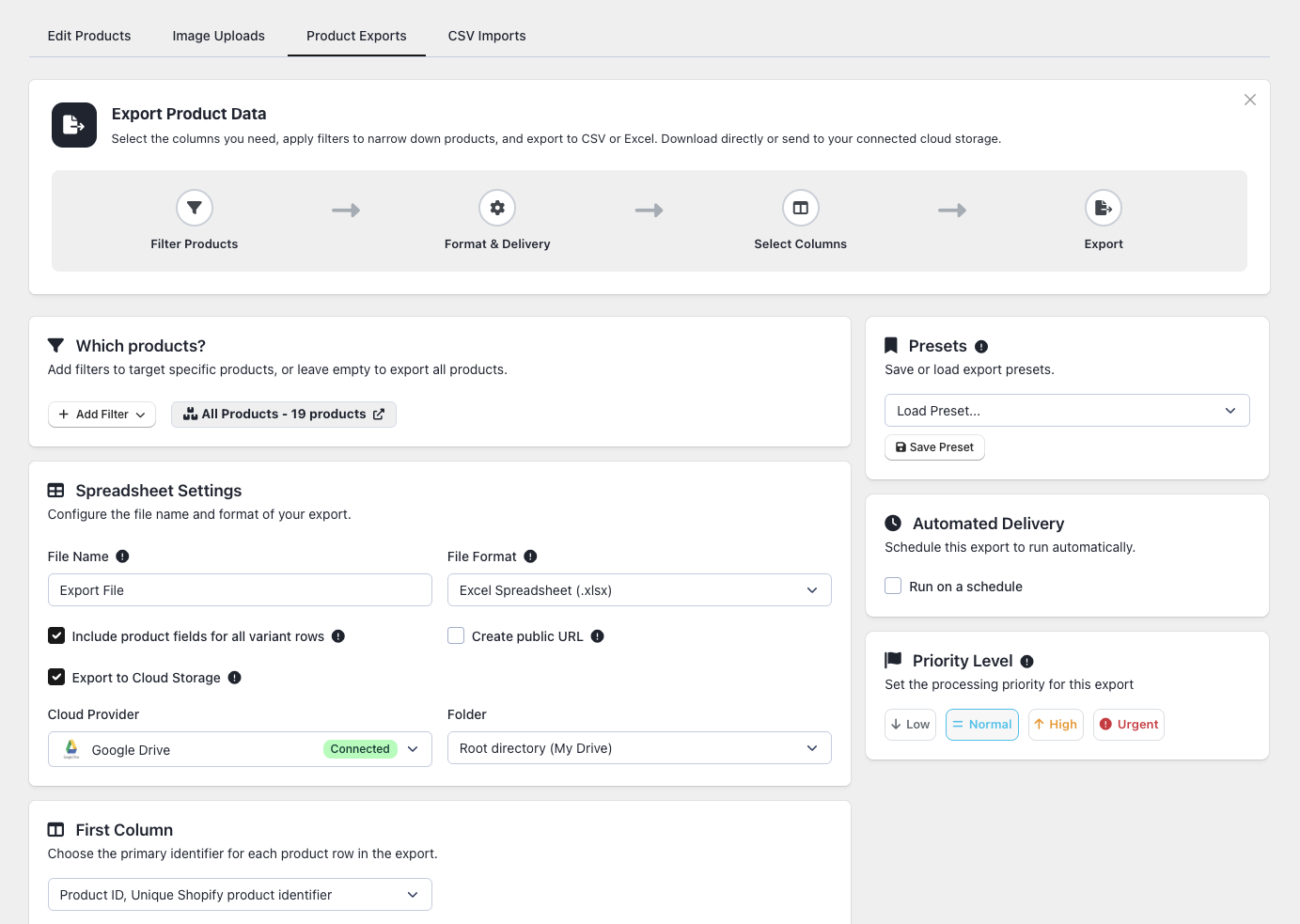
- Go to Edit Products > Export and configure your settings.
- Enable “Also send file to cloud storage”.
- Choose your provider and destination folder.
Managing Your Connections
- Checking Status: View the Cloud Storage settings page to see if your status is “Connected,” “Not connected,” or “Expired”.
- Disconnecting: Click Disconnect next to any provider to remove access immediately.
- Expired Connections: If you change your password or revoke access, the status will show as “Expired”. Simply click Reconnect and sign in again.
Plan Comparison
| Feature | Free | Basic | Advanced | Enterprise |
|---|---|---|---|---|
| Connect Google Drive / Dropbox | Yes | Yes | Yes | Yes |
| Upload images from cloud | Yes | Yes | Yes | Yes |
| Export file delivery to cloud | No | No | Yes | Yes |
| Automatic backup to cloud | No | No | Yes | Yes |
Pro Tips
- Naming Matters: Naming your files with product SKUs (e.g.,
ABC-123.jpg) provides the most reliable matching. - Organization: Keep a dedicated folder for product images to make selection faster.
- Security: The app uses official secure connection methods and never sees or stores your passwords.
- Teamwork: Use shared folders to allow team members instant access to exported files.