This guide covers the essentials for updating product descriptions in bulk, allowing you to manage your store’s content efficiently.
Why Edit Descriptions in Bulk?
Product descriptions inform your customers and help search engines like Google categorize your store. Updating them individually can be tedious, but bulk editing allows you to:
- Add Notices: Place “Free Shipping” or care instructions at the bottom of descriptions.
- Run Promotions: Insert temporary sale banners at the very top of your text.
- Rebrand: Quickly update company names or remove outdated paragraphs across hundreds of items.
- Improve Mobile View: Shorten descriptions that are too long for better mobile display.
Every Description Action Explained
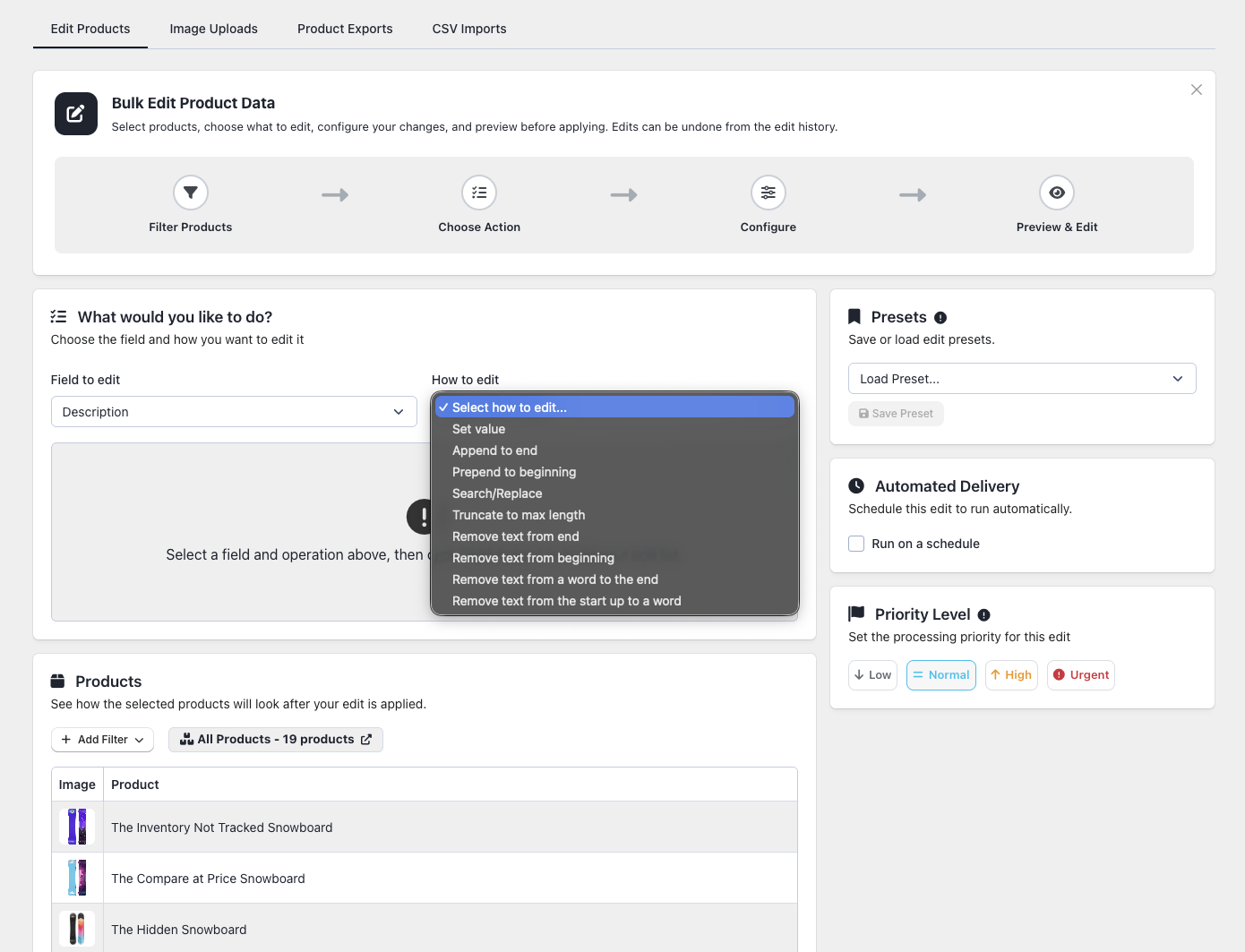
- Set a New Value: Completely replaces the existing description with new text. Caution: This permanently erases the previous content.
- Add Text to the End (Append): Places new information below the current description. This is perfect for standard shipping or warranty notes.
- Add Text to the Beginning (Prepend): Inserts text at the very top. Ideal for urgent announcements or sale banners.
- Find and Replace: Swaps specific words or phrases for new ones. You can also leave the “Replace with” field empty to simply delete text.
- Cut to a Maximum Length: Truncates long descriptions to a specific character count for better consistency.
- Remove from a Word to the End: Finds a marker (like “Disclaimer”) and deletes everything from that point to the bottom.
- Remove from the Start to a Word: Deletes everything from the top of the description down to your chosen marker word.
Step-by-Step Examples
Example 1: “I want to add a free shipping notice to all products”
- Navigate to Edit Products and apply your filters.
- Select Description as the field to edit.
- Choose Add text to the end.
- Type your notice:
Free shipping on all orders over $50!. - Click Preview to verify, then Start Edit.
Example 2: “I need to update my company name”
- Set the field to Description and choose Find and Replace.
- Search for your old name (e.g.,
OldBrand Inc.). - Enter your new name in the Replace with field (e.g.,
NewBrand Co.). - Click Start Edit.
Smart Text Templates
“Smart Placeholders” allow you to pull unique data for each product automatically, which is ideal for creating personalized SEO titles.
| Placeholder | What it becomes | Example |
|---|---|---|
{title} |
The product’s name | “Blue Running Shoes” |
{vendor} |
The brand name | “Nike” |
{type} |
The category | “Shoes” |
Pro Tip: Typing
{title} by {vendor}creates unique text like “Blue Running Shoes by Nike” for every item in your batch.
Helpful Tips
- Use Formatting: Descriptions support bold, italics, bullet points, and web links.
- Be Specific: When using “Find and Replace,” search for full phrases. Searching for a short word like “red” might accidentally change words like “ordered”.
- Test & Restore: Always run a test on 2–3 products first. If you make a mistake, you can undo any change via the History page using the restore feature.
Plan Limits
Description editing is available on all plans:
| Plan | Products per Edit |
|---|---|
| Free | 50 |
| Basic | 10,000 |
| Advanced | 100,000 |
| Enterprise | Unlimited |