You can watch the video tutorial, which provides a step-by-step guide through the process.
You can also send automatic invoices to specific customer groups by following the simple steps below:
In order to send automatic invoices for specific customer groups, you can add a tag to your orders and the orders with this tag will be sent to your customers.
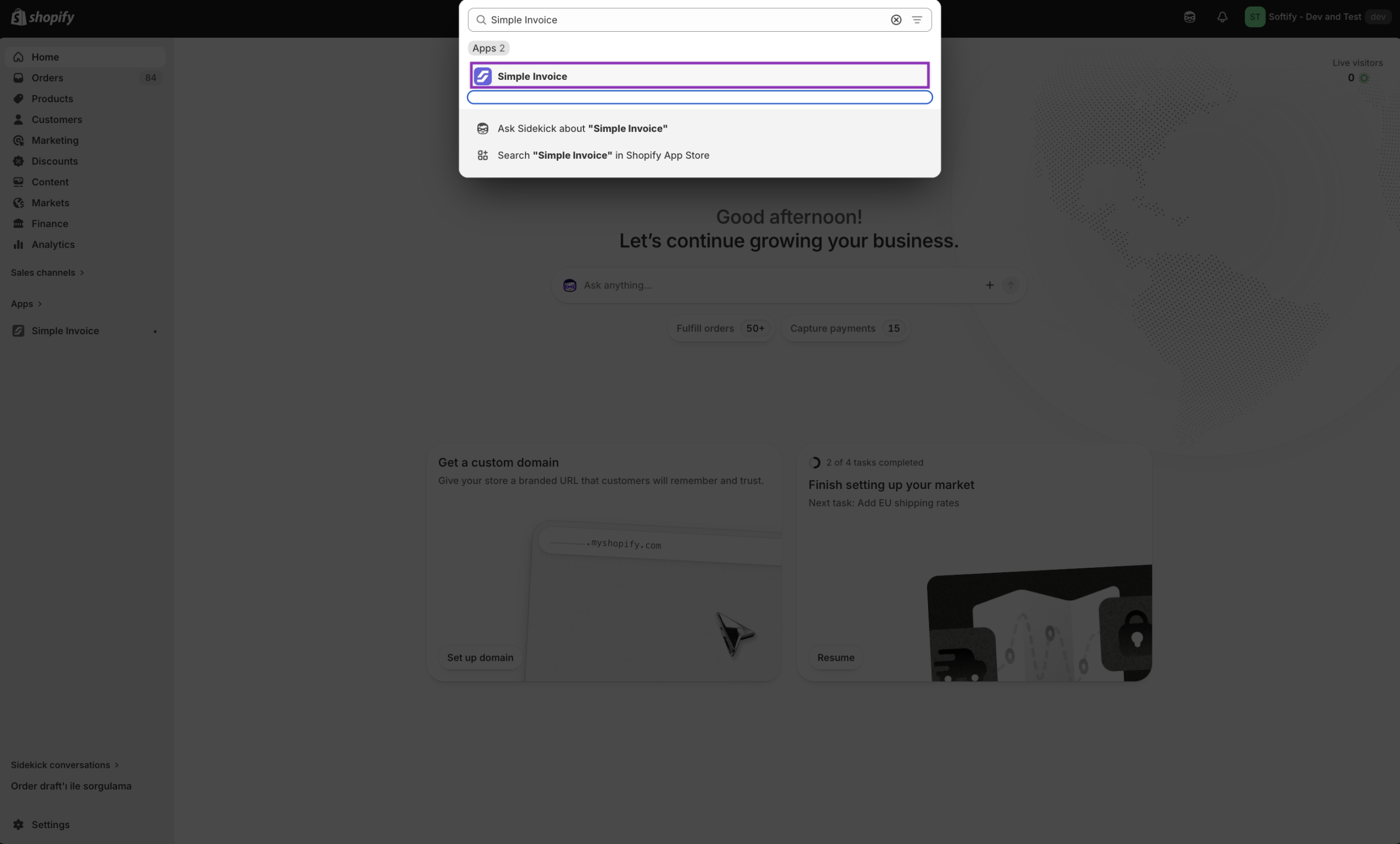
Step 1: Access Simple Invoice from the “Apps” section of your Shopify store.
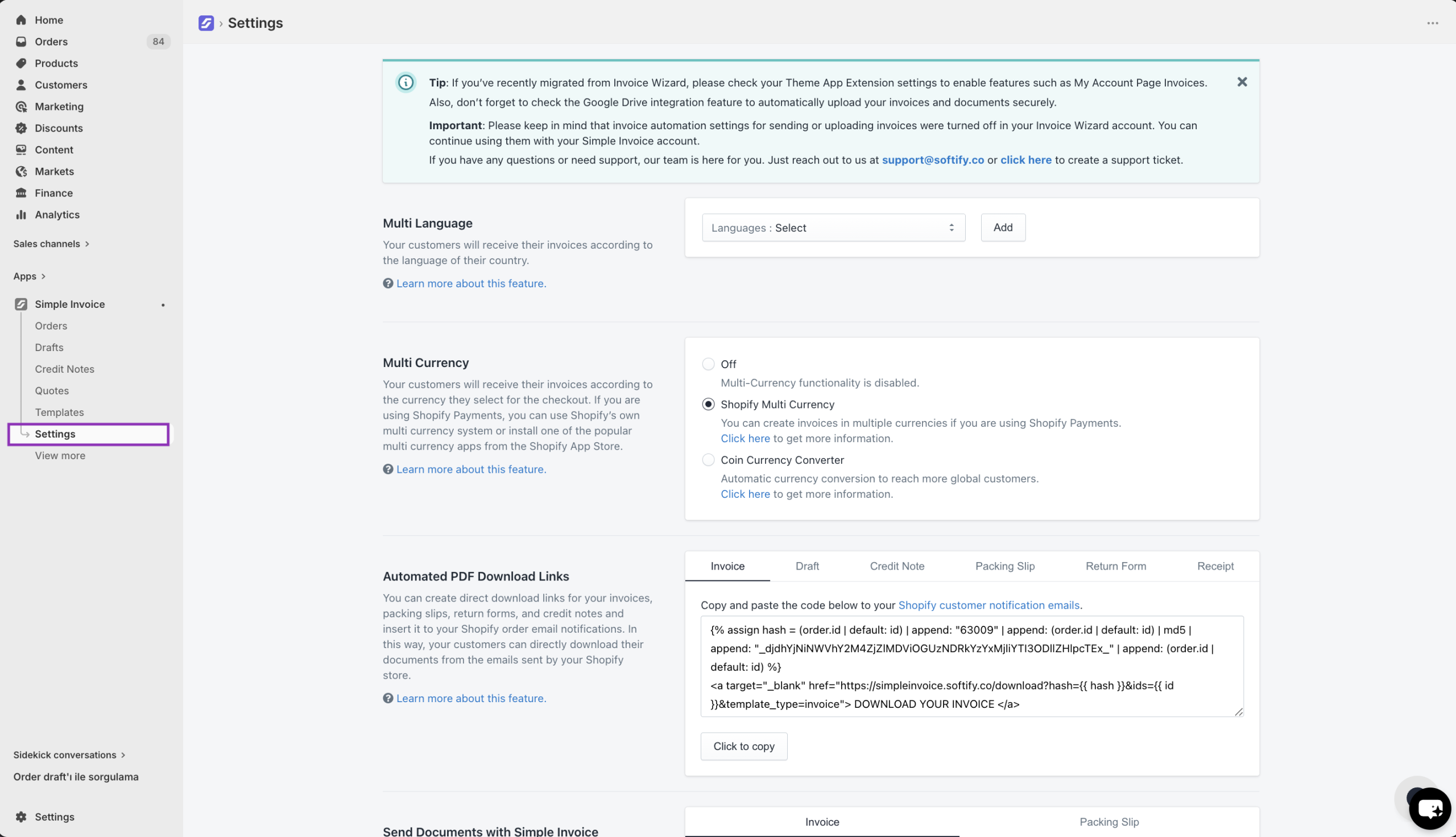
Step 2: Navigate to the “Settings” section within Simple Invoice.
Step 3: Scroll down to the ‘Set Additional Sending Conditions’ section, click on the Customer Tag (Include), type your customer tag, and hit the ‘Enter’ key to save your order tag. Then, please click on the “Save” button to confirm your changes.
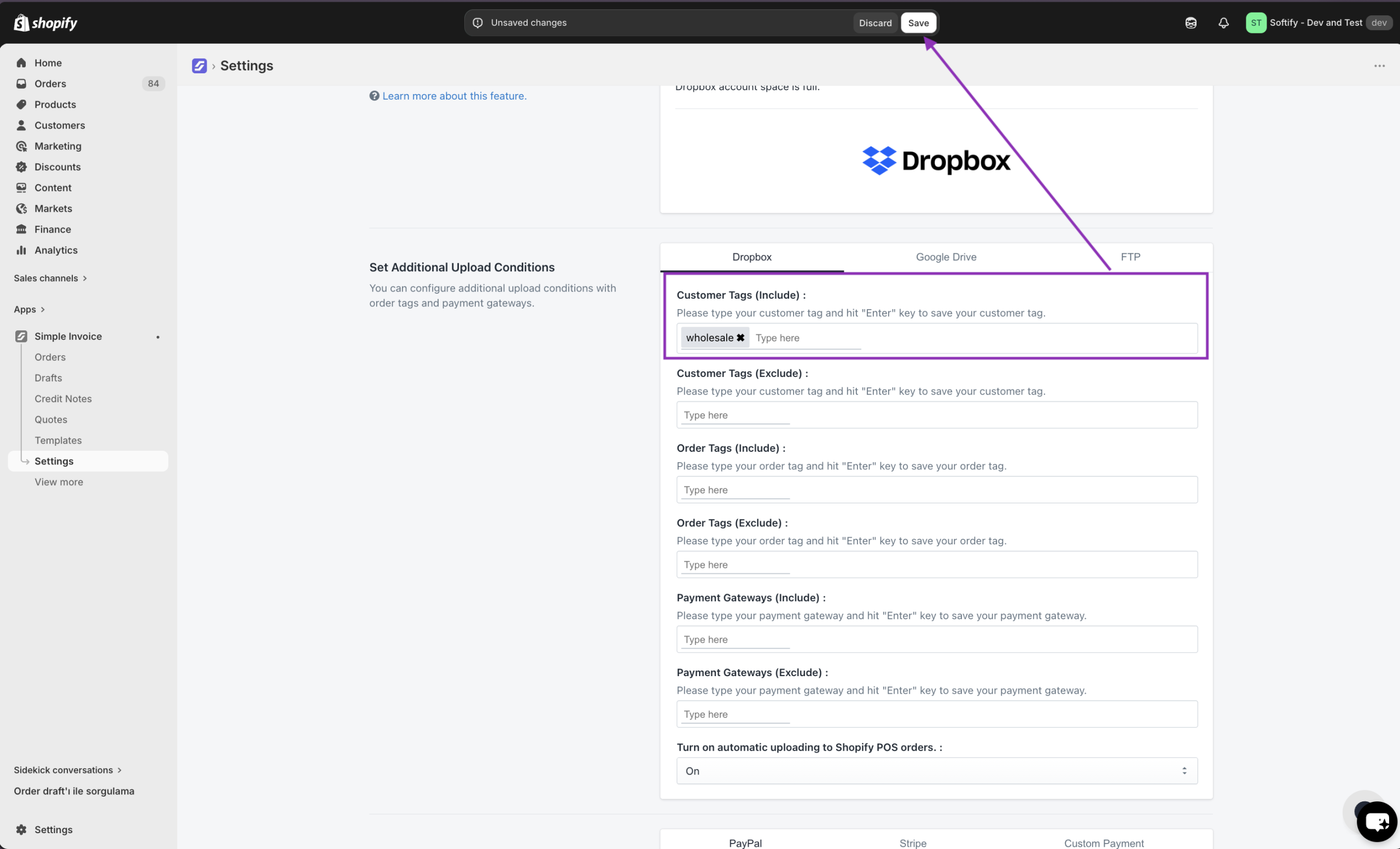
Important Note: It is important to add the exact customer tag name into this field. You can get more information about Order Tags by clicking here.
If you set Send Invoices with Simple Invoice option to “Auto on order“, even if you add a tag into this field, invoices will still be sent to all your customers. In order for this condition to work, Send Invoices with Simple Invoice option must be set to “Auto on payment” or “Auto on fulfillment“.
If you need further help on how to use these options, you can create a support ticket from the Support section or by clicking here.